
Module Publication v2
a) Steps to Login to SMPPI
1. Go to Kinabalu Portal at kinabalu@ums.edu.my.
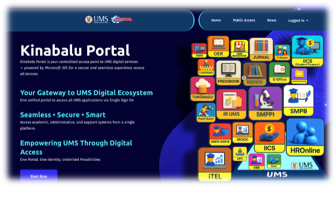
2. Search for and click the SMPPI icon.

3. You will be redirect to the SMPPI main page, as shown below.
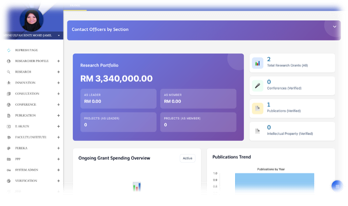
b) Steps to complete the Publication Form.
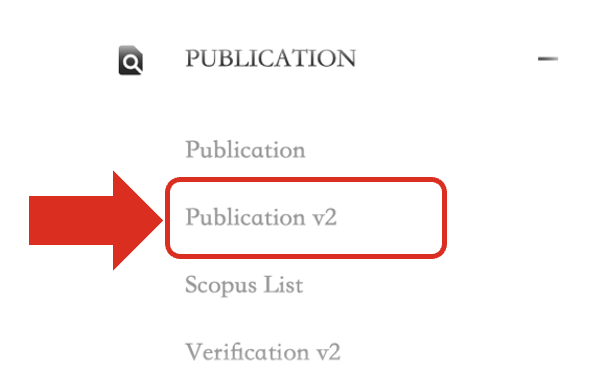
1. Under the Publication menu, select Publication v2.
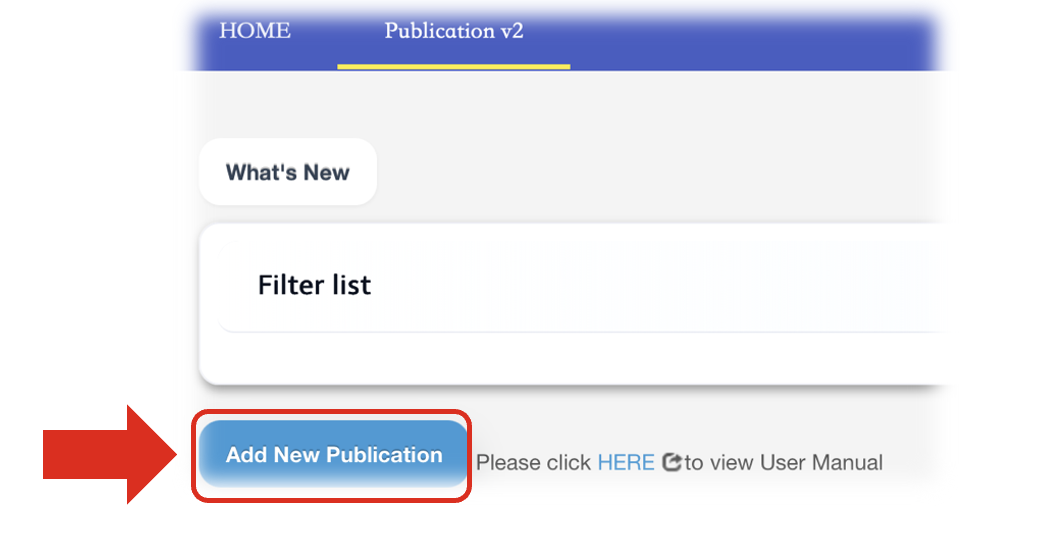
2. Click Add New Publication button - Select a category: Article, Book, Proceeding or General.
3. Enter the title — Enter an accurate keyword/title, then click Search Possible duplicate.
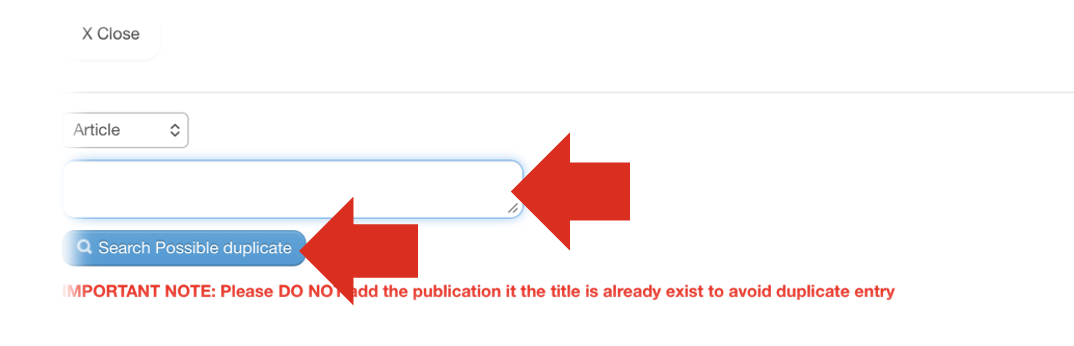
4. Check for possible duplicates — If the same record is found, select it to update it or link it to your name. If there is no duplicate, click Next to Proceed.
5. Complete the form — The system generates a new Ref ID. Complete Section A and save it before filling in Section B and the attachments.

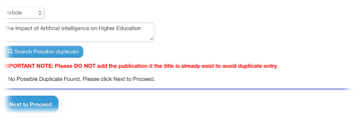
**Avoid duplicates: Do not create a new record if the publication has already been recorded by a co-author. Use the duplicate search and add yourself as an author to the existing record where needed.
6. You will be redirected to the Publication main page, where you can enter the publication details.
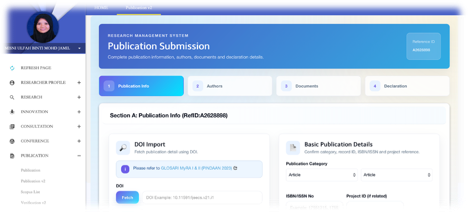
7. This page consists of four (4) sections:
i. Publication Info
ii. Authors
iii. Documents
iv. Declaration
c) Section A - Publication Info
Importing publication information using DOI - Use DOI Import to retrieve available publication information before completing the remaining fields in Section A.


|
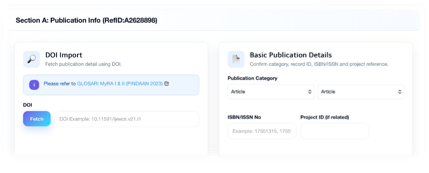
1. Enter the DOI - Paste a valid DOI into the DOI input field.
2. Click Fetch - Select Fetch to request publication information from the DOI record.
3. Review the retrieved details - Check the information populated in the publication form, such as the title, source and other available bibliographic details.
4. Complete and correct the record - Fill in any missing fields and correct any values that do not match the publication before saving.
5. Save Section A – Click Save Section A button after selecting the publication year and publication status. The system saves the record as a draft.
**Important: Retrieved data must be checked against the official publication before submission.
Conference information for Proceedings
This section appears only when the Category is Proceeding. Complete the conference name, start/end dates, venue, organizer, award (if applicable), proceedings title and conference level. Ensure the information matches the supporting document.
d) Section B – Author Information
1. My Writer Status – can update user’s own writer status.
|
|
|


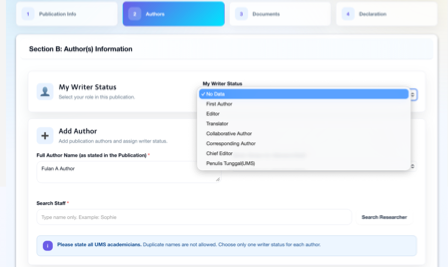
2. Enter Full Author Name — Enter the authors' full names in the order shown in the publication.
3. Add UMS authors — Search for a lecturer using the author-search function and select the appropriate author role, for example, main author or co-author.
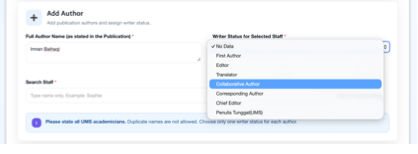
4. Review the list — Ensure all relevant UMS authors are listed. The system prevents the same author from being added twice.
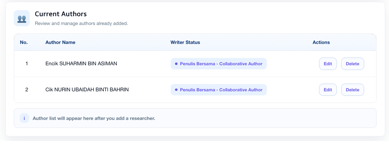
**Important: A record cannot be submitted for verification when there are no authors in the system author list.
e) Section C – Documents
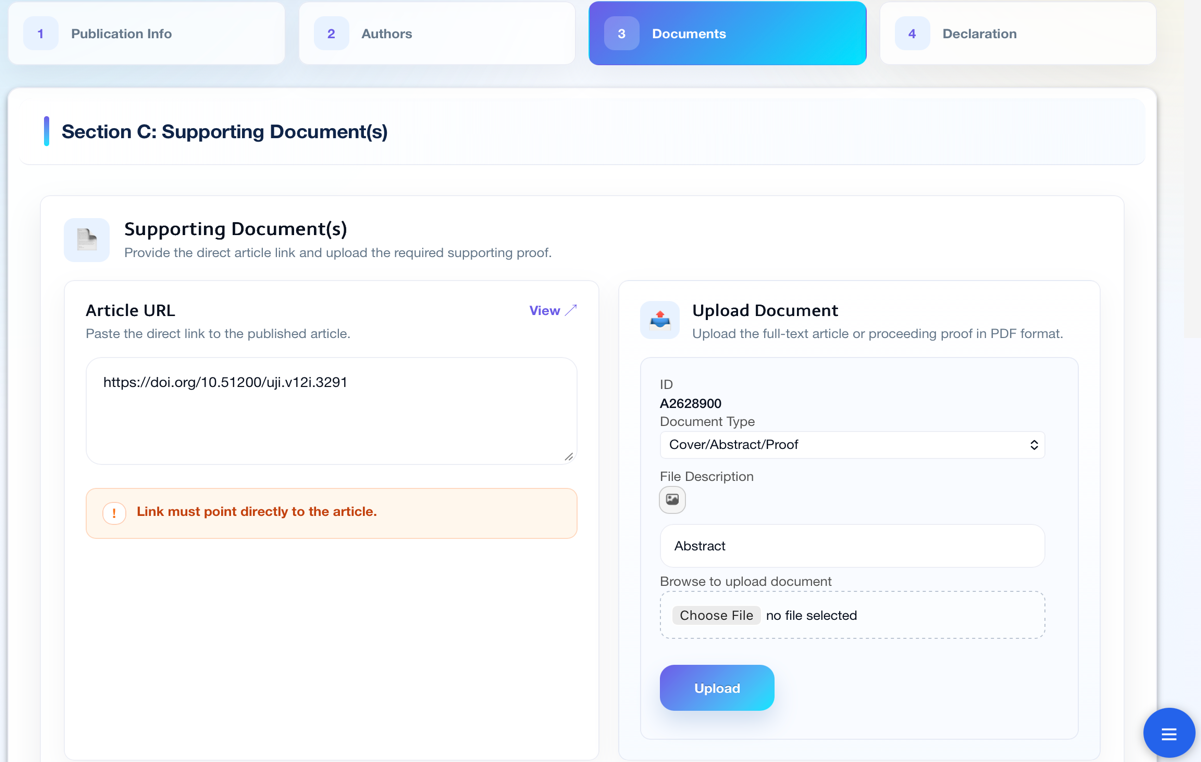
In the attachment section, upload supporting documents. The system recommends PDF format and the full text of published articles/proceedings. The attachment list updates after a successful upload.
1. Use a clear and readable PDF file.
2. For articles/proceedings, attach pages showing the title, authors, source, year and publication/acceptance status.
3. If an official URL is sufficient, enter the URL; however, supporting attachments remain very helpful during verification.




f) Save, Submit and Update
|
Button |
Purpose |
|
Save Section A |
Save basic information as a draft so that you can add authors and attachments later. |
|
Save |
Save changes to an existing record as a draft. |
|
Submit For Verification |
Submit a complete record to the administrator for verification. |
|
Reset |
Clear unsaved inputs. Use this carefully. |
|
Back to Main List |
Return to the publication list. |
|
Delete |
Delete a record that is permitted to be deleted. Imported SCOPUS records cannot be deleted through this form. |
g) Update Existing Record
1. Find the record — Use Filter list or search in your publication list.
2. Click the title — Open the record form and check the verification status and administrator remarks, if shown.
3. Make corrections — Complete the requested information or supporting evidence, then click Save or Submit for Verification again.
No comments to display
No comments to display