
6 CUSTOMIZING YOUR CHAT WIDGET
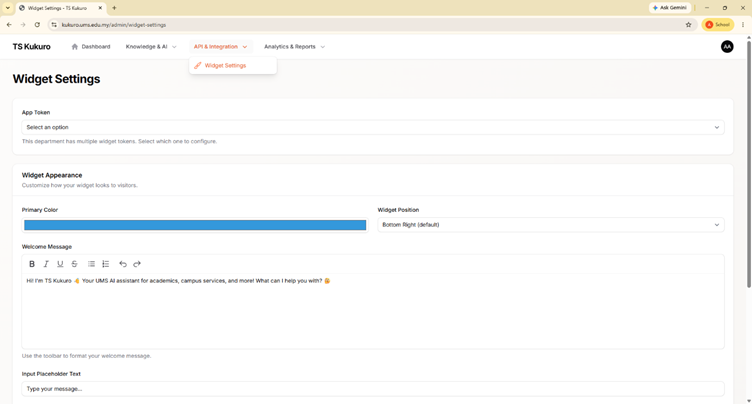
Figure 7: Widget Settings
Appearance: Set your widget's Primary Color and its Position on the page (Bottom Right, Bottom Left, Top Right, or Top Left).
Rupa Bentuk: Tetapkan Warna Utama widget anda dan Kedudukannya pada halaman (Bottom Right, Bottom Left, Top Right, atau Top Left).
Welcome Message & Placeholder: Write a formatted greeting shown when the widget opens, and set the placeholder text shown in the empty message box.
Mesej Alu-aluan & Ruang Letak: Tulis mesej alu-aluan berformat yang dipaparkan apabila widget dibuka, dan tetapkan teks ruang letak yang dipaparkan dalam kotak mesej kosong.
Quick Messages: Add short questions that appear as clickable buttons before the visitor's first message.
Mesej Pantas: Tambah soalan ringkas yang dipaparkan sebagai butang boleh klik sebelum mesej pertama pelawat.
Size: Adjust the widget's Width (280–600px) and Height (400–800px) to fit your site's layout.
Saiz: Laraskan Lebar (280–600px) dan Tinggi (400–800px) widget agar sesuai dengan reka letak laman anda.
Save & Test: Click "Save Changes" to apply your settings, or "Test Widget" to auto-save and preview the widget live before rolling it out to visitors.
Simpan & Uji: Klik "Save Changes" untuk melaksanakan tetapan anda, atau "Test Widget" untuk simpan automatik dan pratonton widget secara langsung sebelum melancarkannya kepada pelawat.
No comments to display
No comments to display