
Dashboard Pentadbir JAFPIB - Selenggara SKU Jabatan
- Selenggara Penetapan Pegawai Penilai
- Selenggara SKU Jabatan
- Pemantauan Penglibatan & Sumbangan
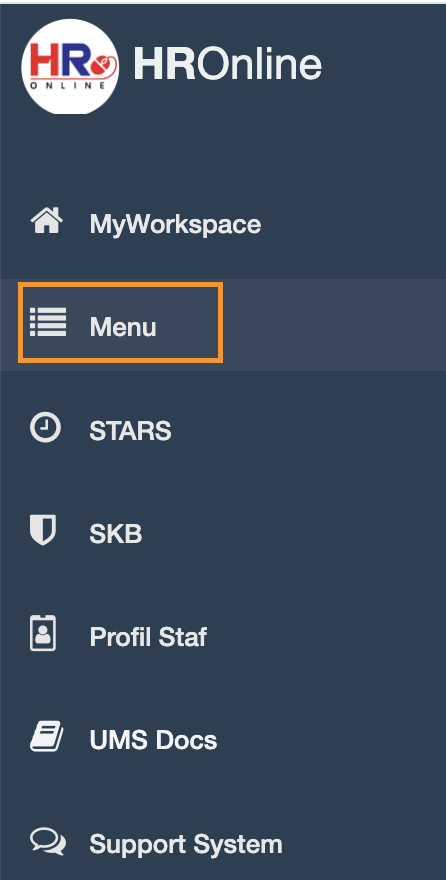
SELENGGARA SKU JABATAN
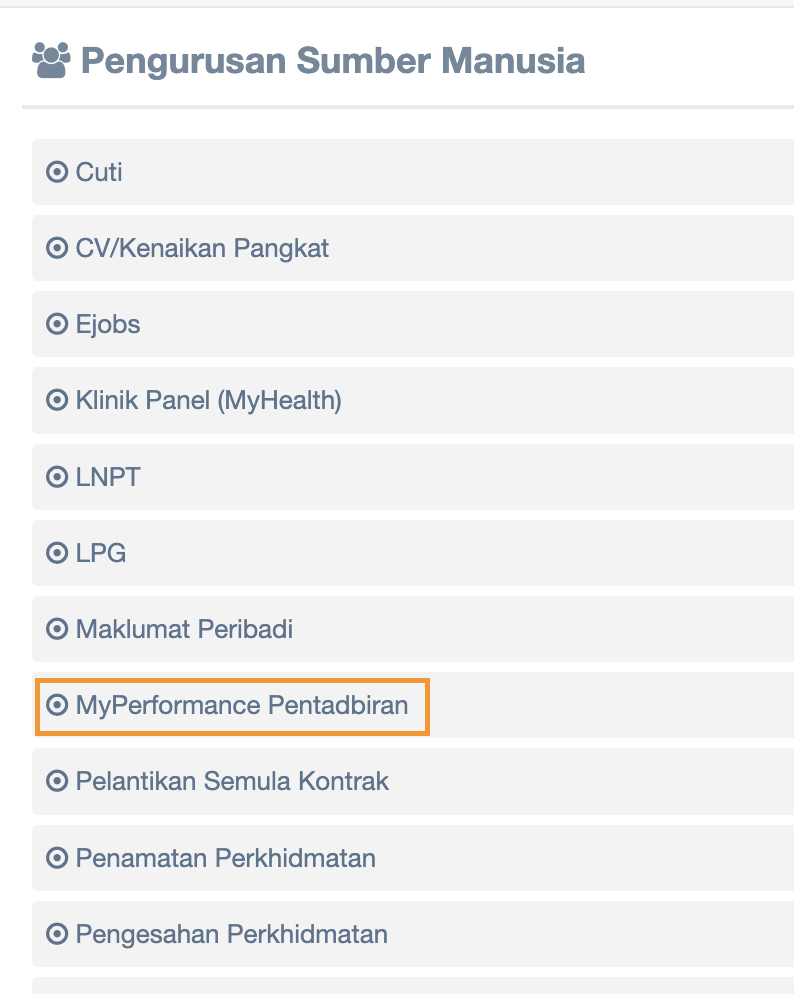
Step 2 : Click MyPerformance Pentadbiran
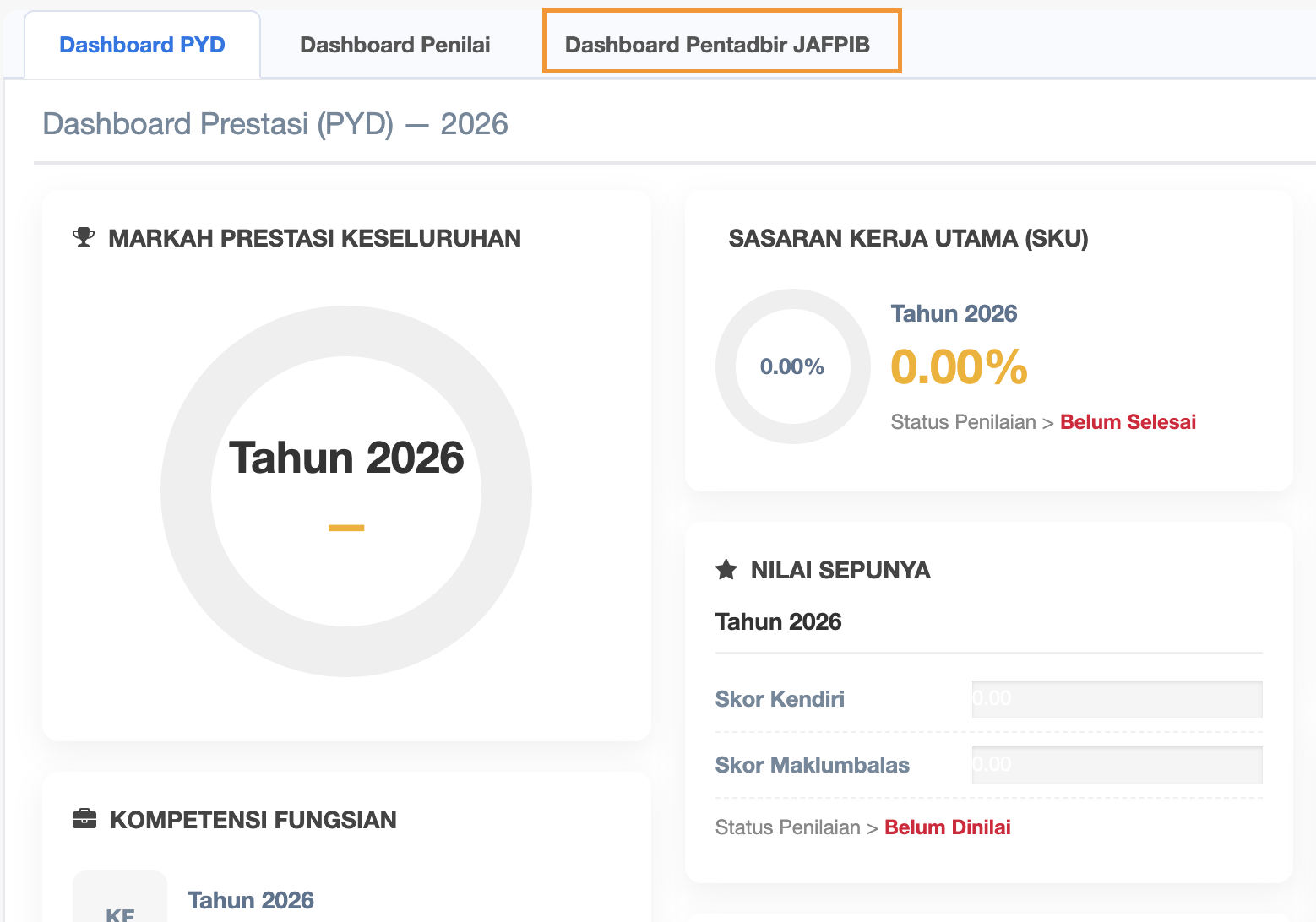
Step 3 : Click Dashboard Pentadbir JAFPIB
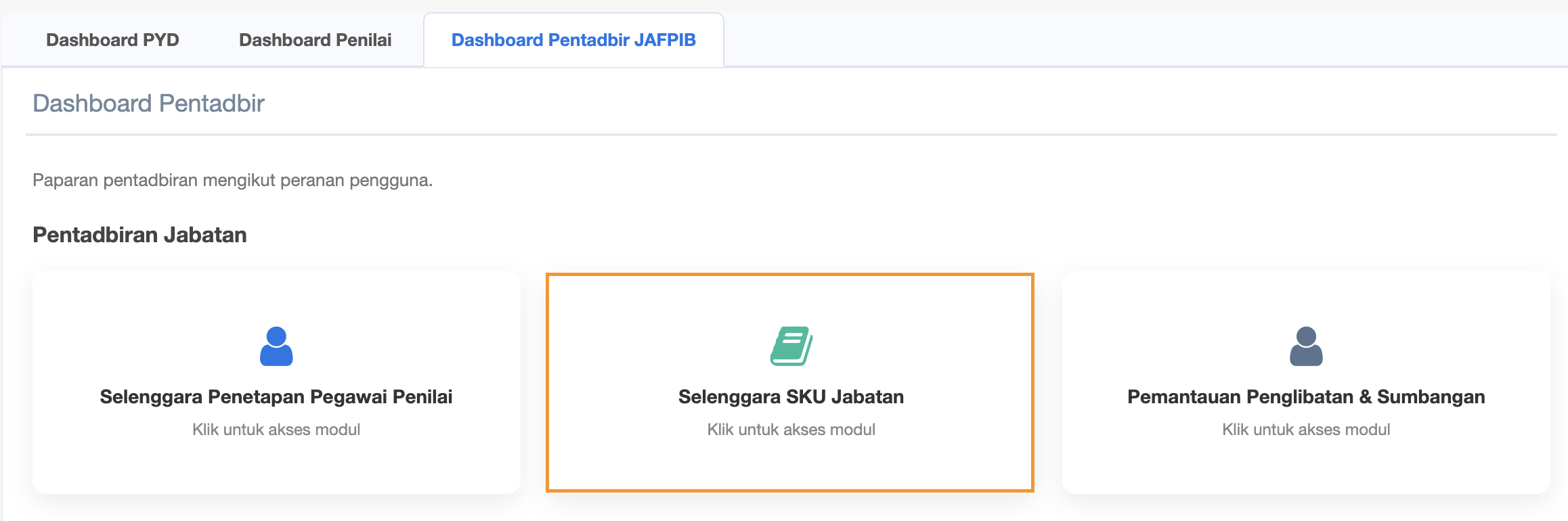
Step 4 : In Dashboard Pentadbir JAFPIB page, click Selenggara SKU Jabatan
Step 5 : Page Selenggara SKU Jabatan
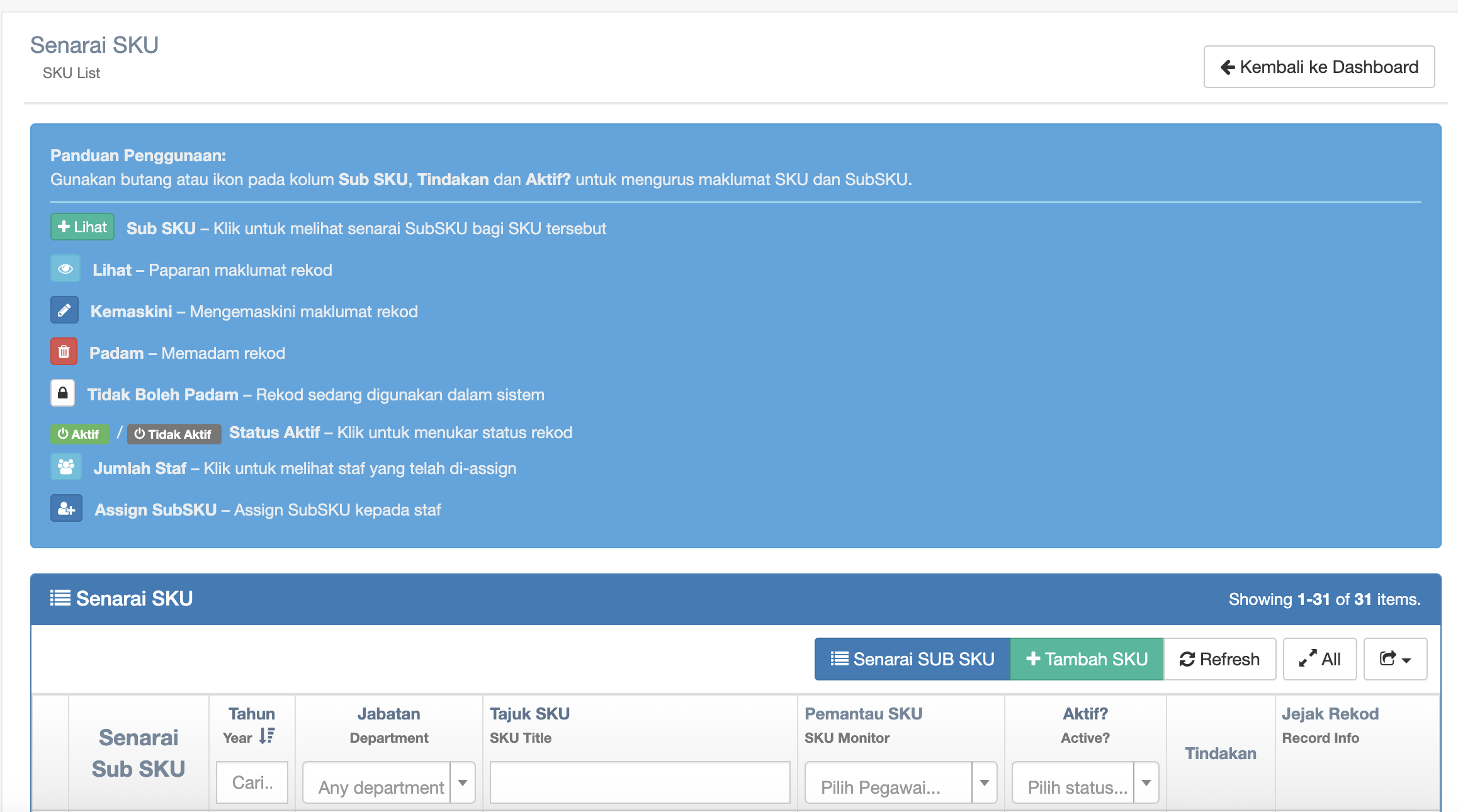
Step 6 : Click Senarai SUB SKU to view SUB SKU under the own department
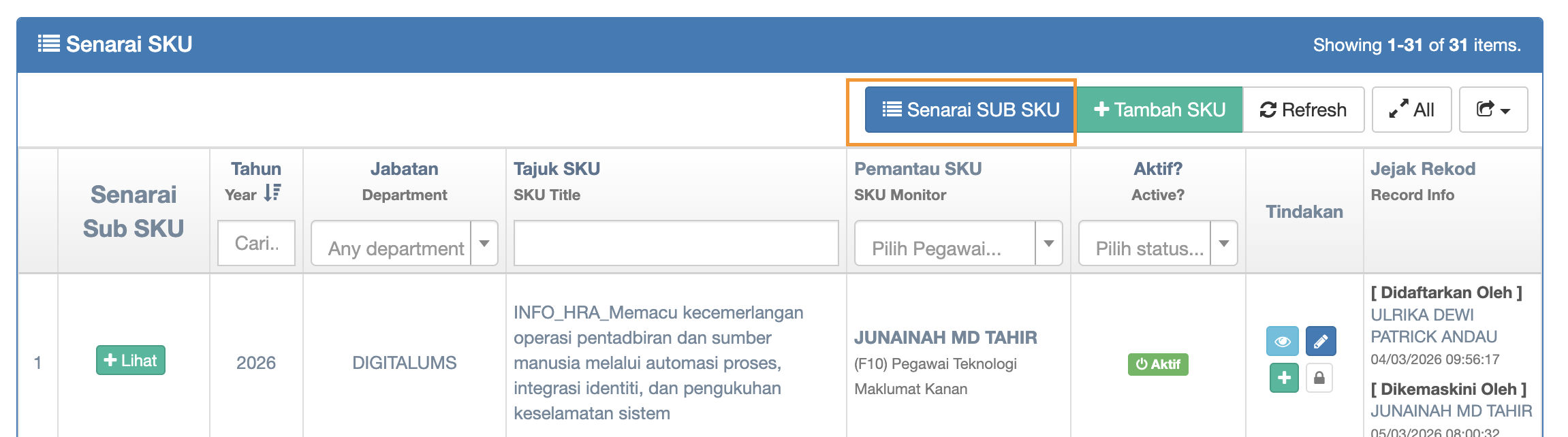
View of Senarai SubSKU
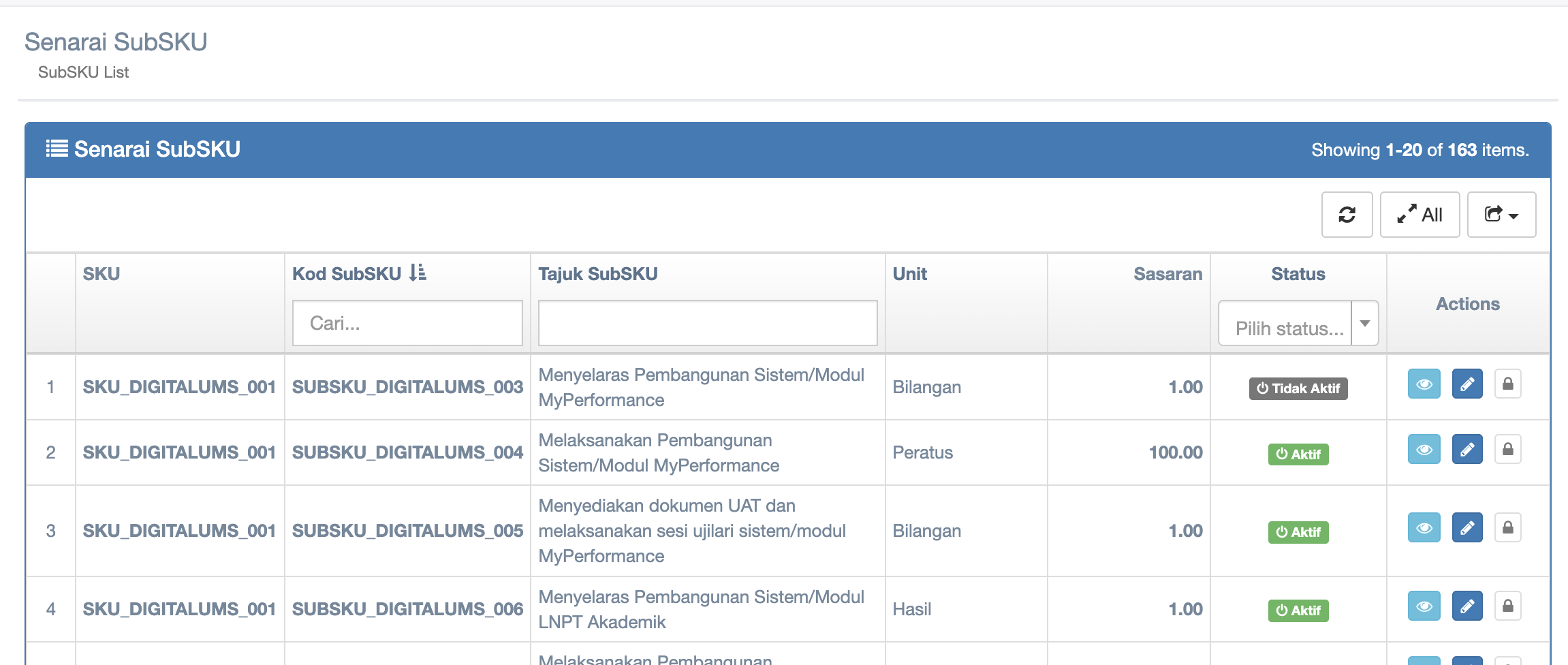
Step 7 : Click +Tambah SKU to add SKU
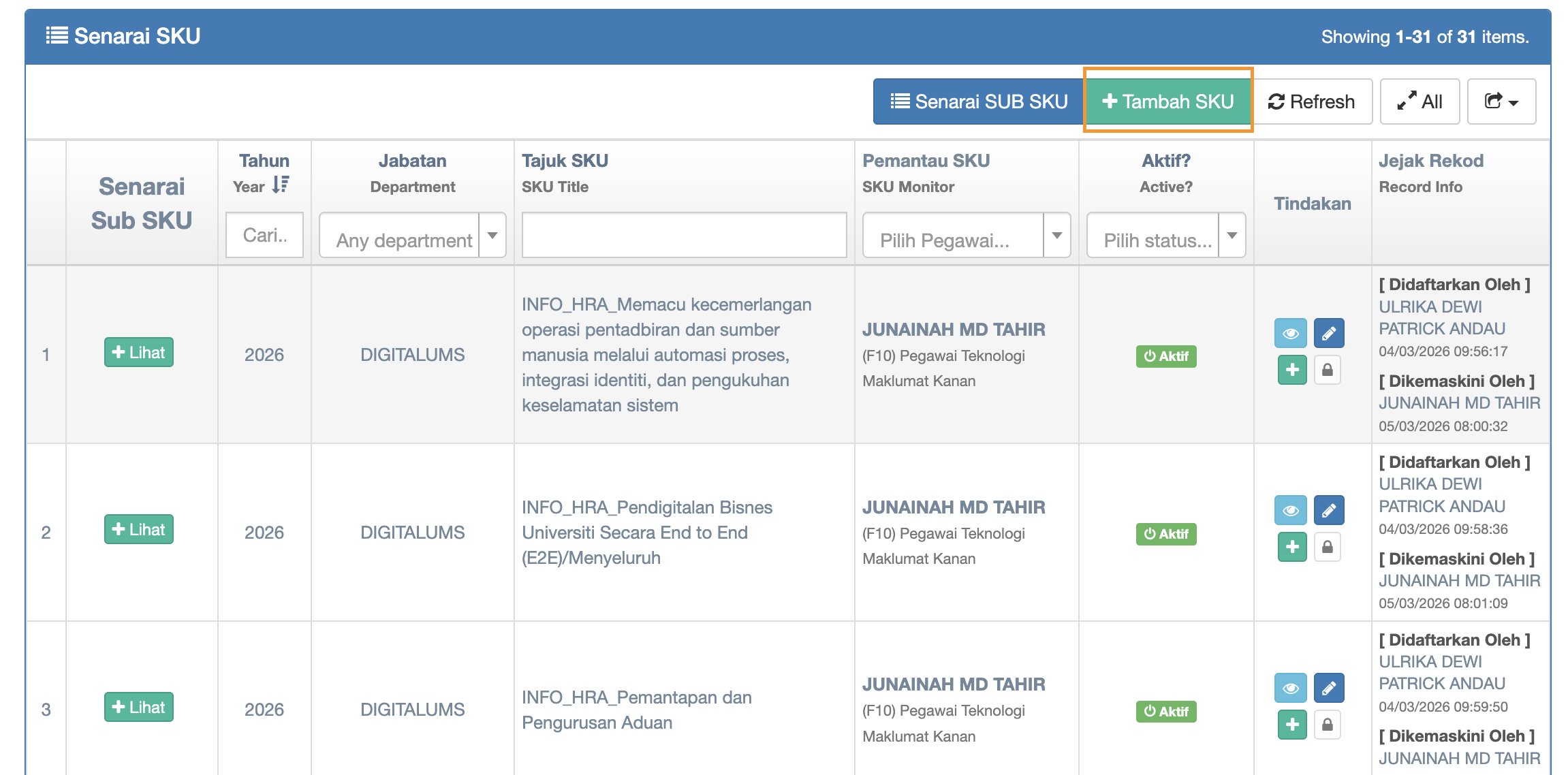
Step 8 : +Lihat button is to open SubSKU which being assigned to staff
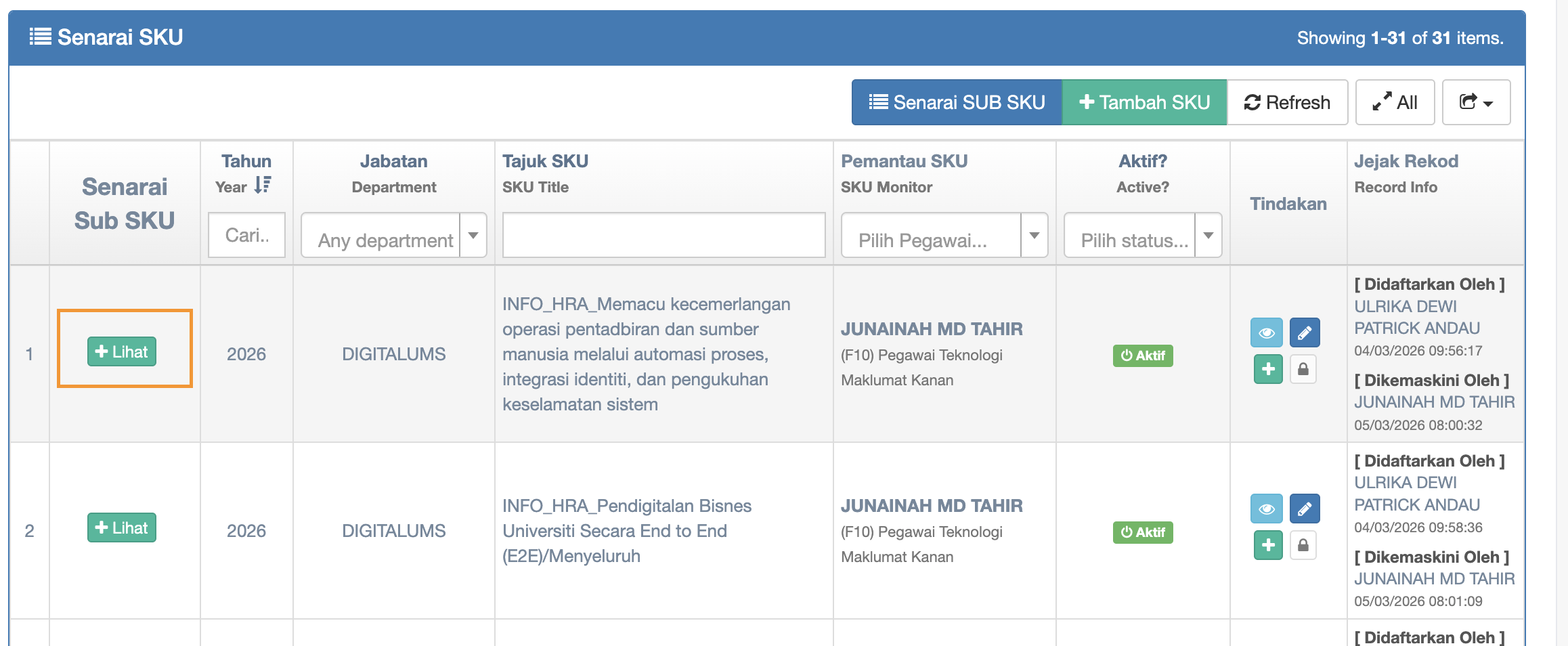
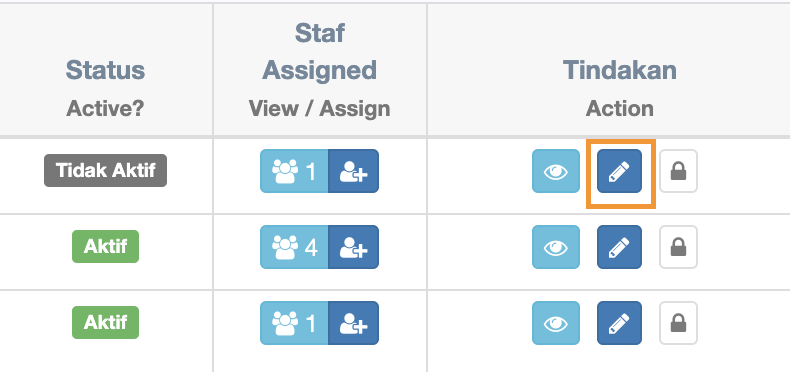
Step 9 :Tindakan
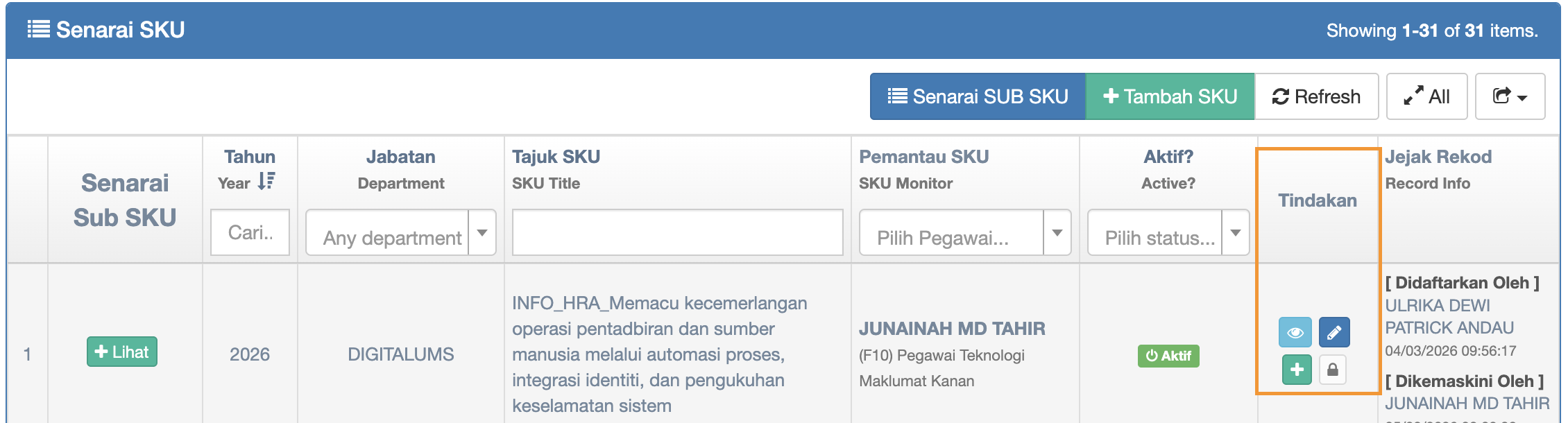
-
The eye Icon is to view details of the SKU
-
Pencil icon is to do editing to the SKU
-
+ icon is to add SKU
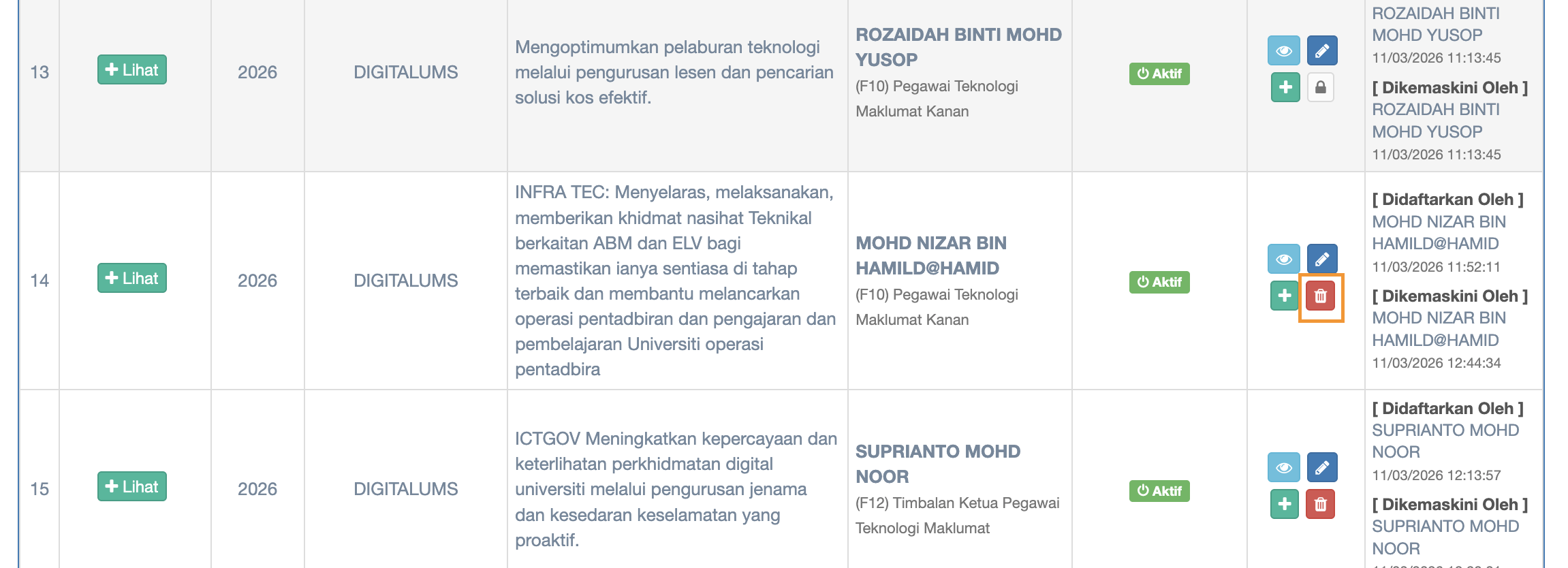
Click delete button to delete SKU
Step 10 : Click +Lihat button is to open SubSKU which being assigned to staff and view of details of SubSKU
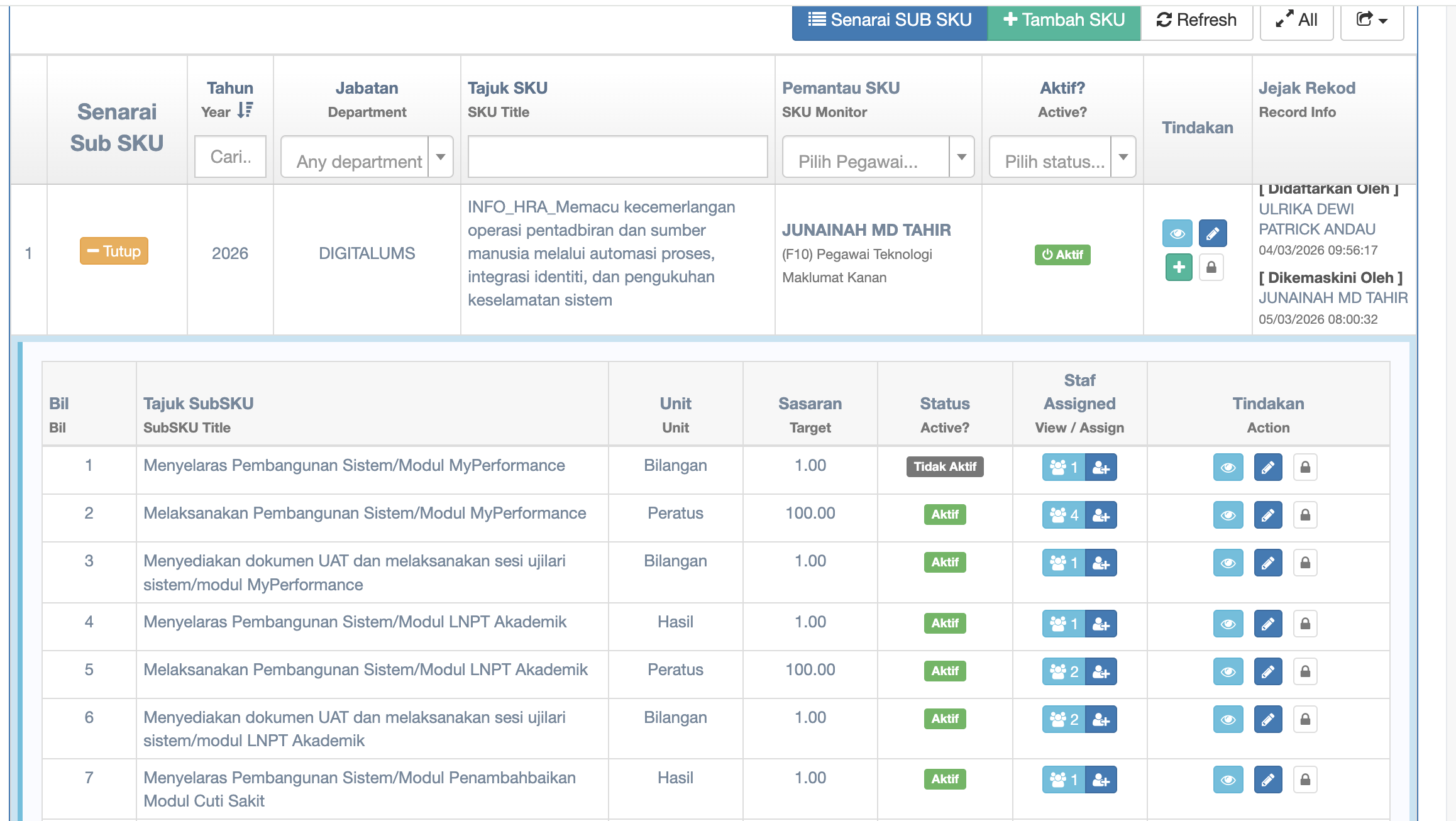
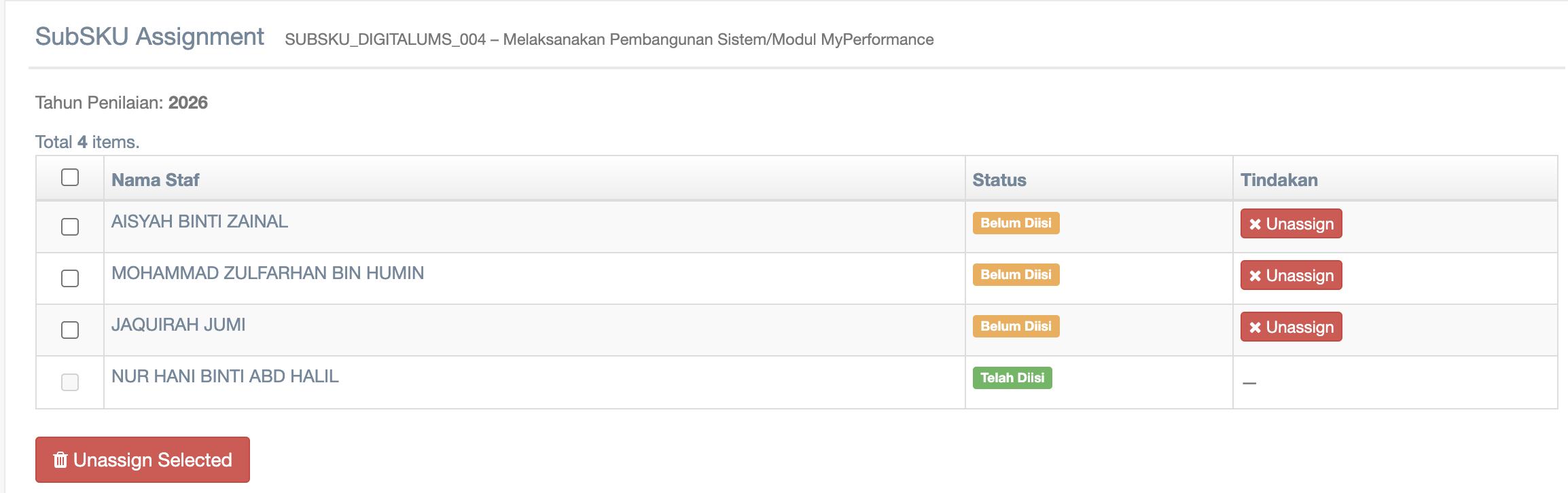
Step 11 : number appear inside the button of Staf Assigned is a number of staff who has been assigned. Click it to view assigned staff
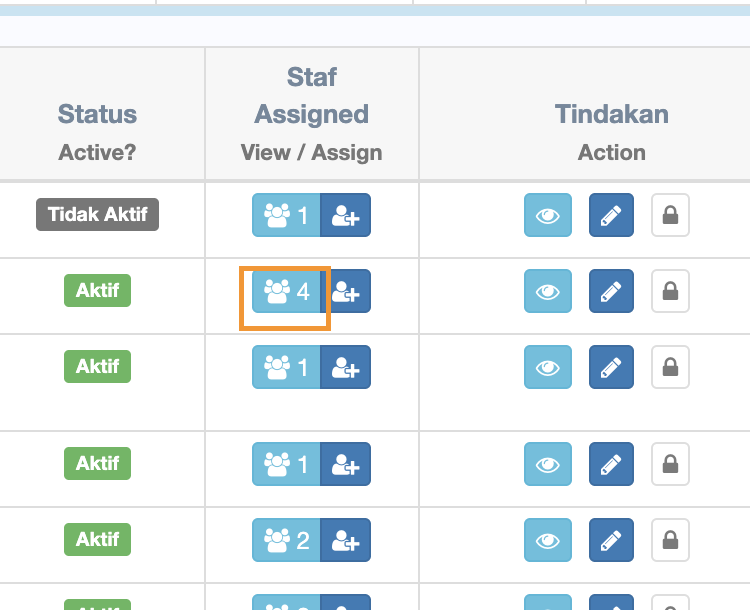
Click to view assigned staff
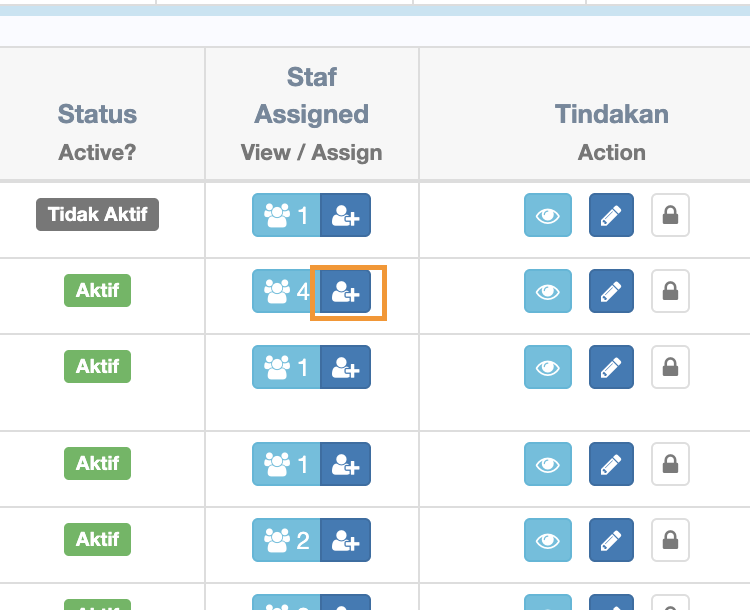
Step 12 : Staf Assigned - click this button + to assign staff
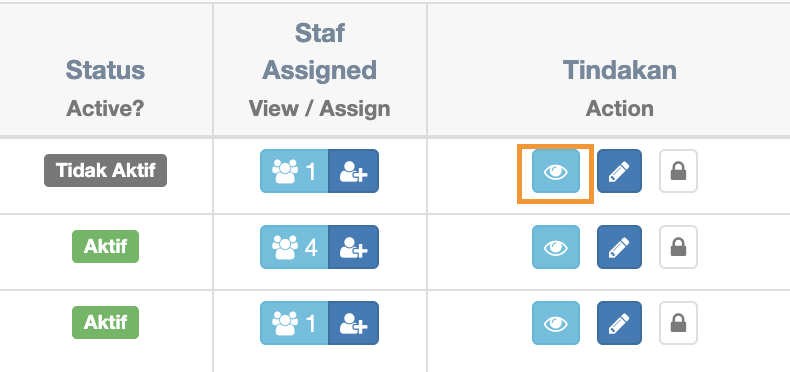
Step 13 : the eye icon is to view SubSKU details
Step 14 : The pencil icon is to edit SubSKU details
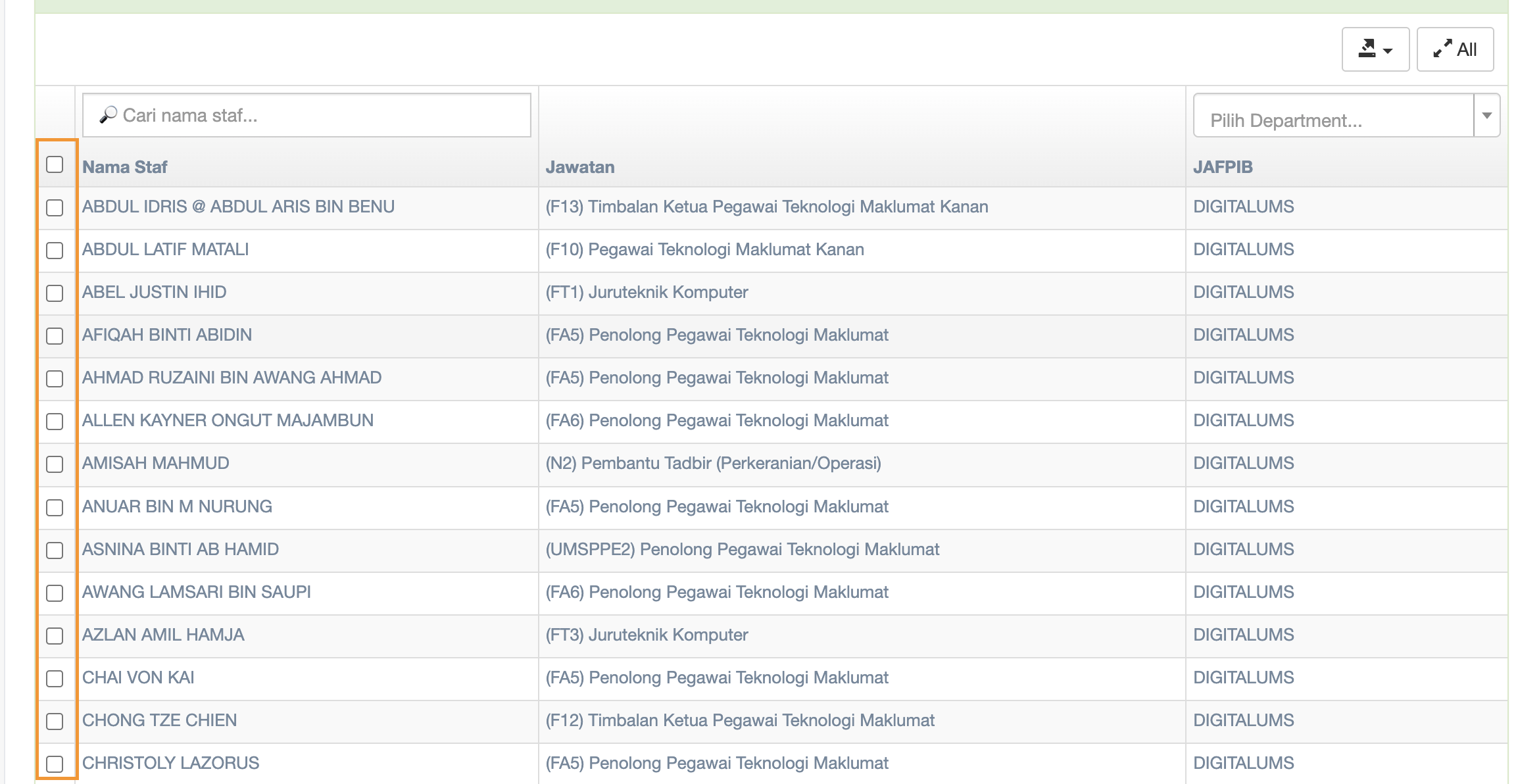
Step 15 : tick the checkbox next to the names to assign staff
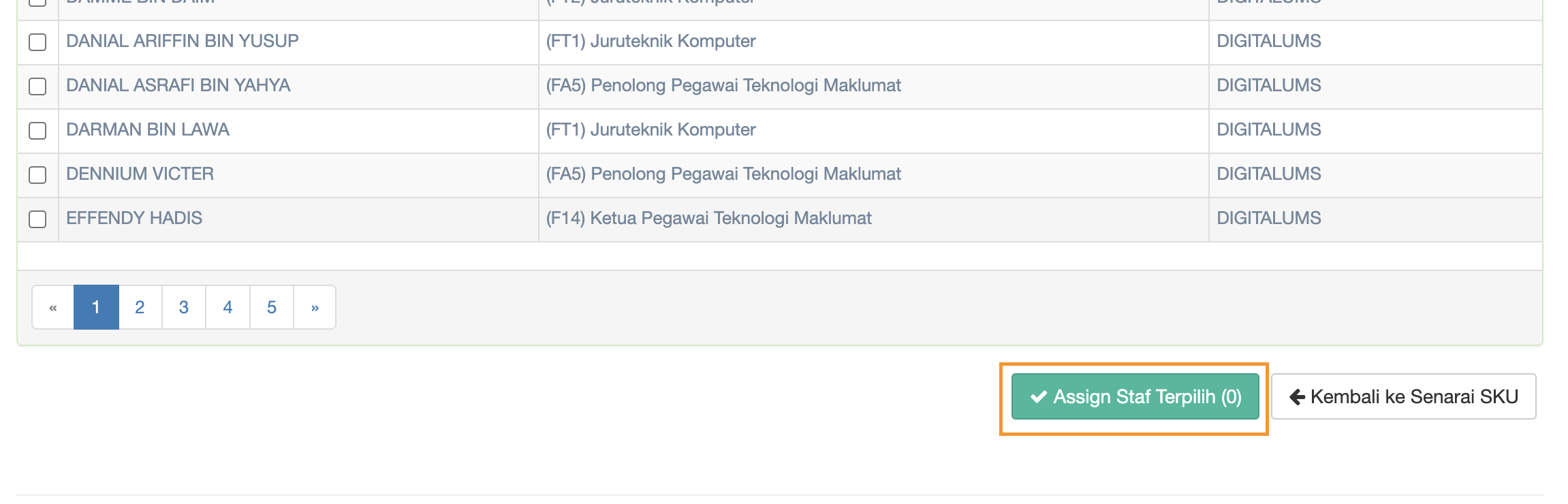
Click Assign Staf Terpilih when you done marking the checkbox of staff's name
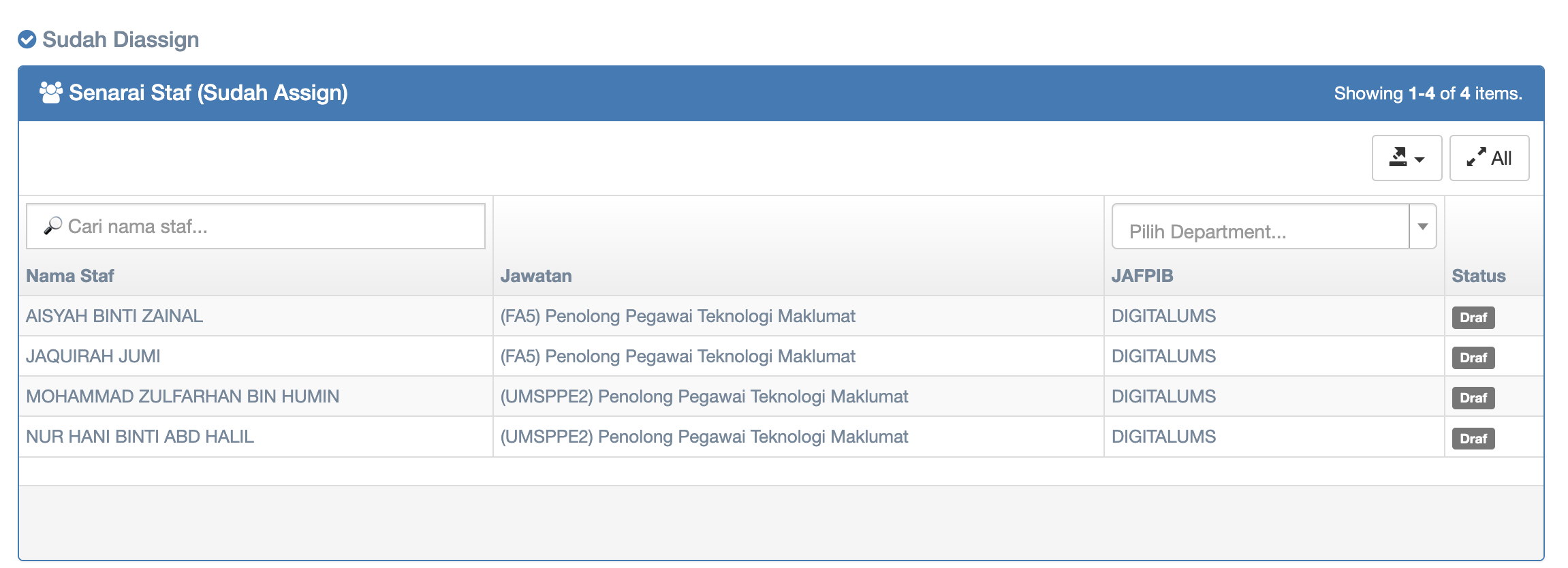
View of assigned staff after Assign Staf Terpilih being clicked
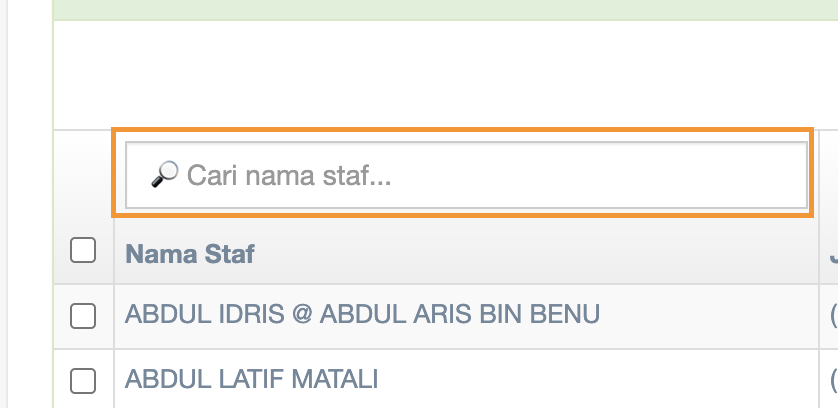
Step 16 : search staff's name
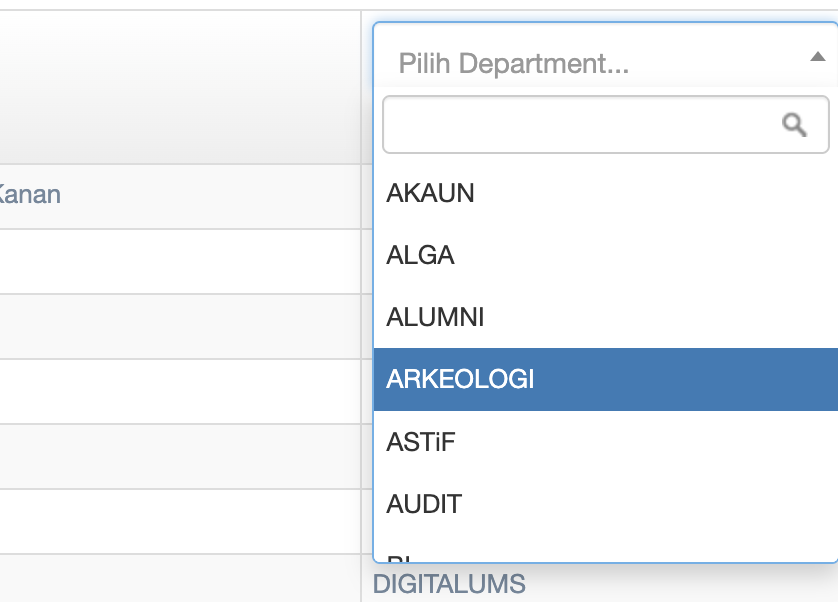
Step 17 : Click dropdown list of Pilih Department to choose other departments
No comments to display
No comments to display