How To Create A Class
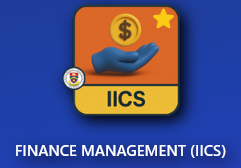
- Go to IICS Website (Login into Portal Kinabalu and search for the Finance Management(IICS))
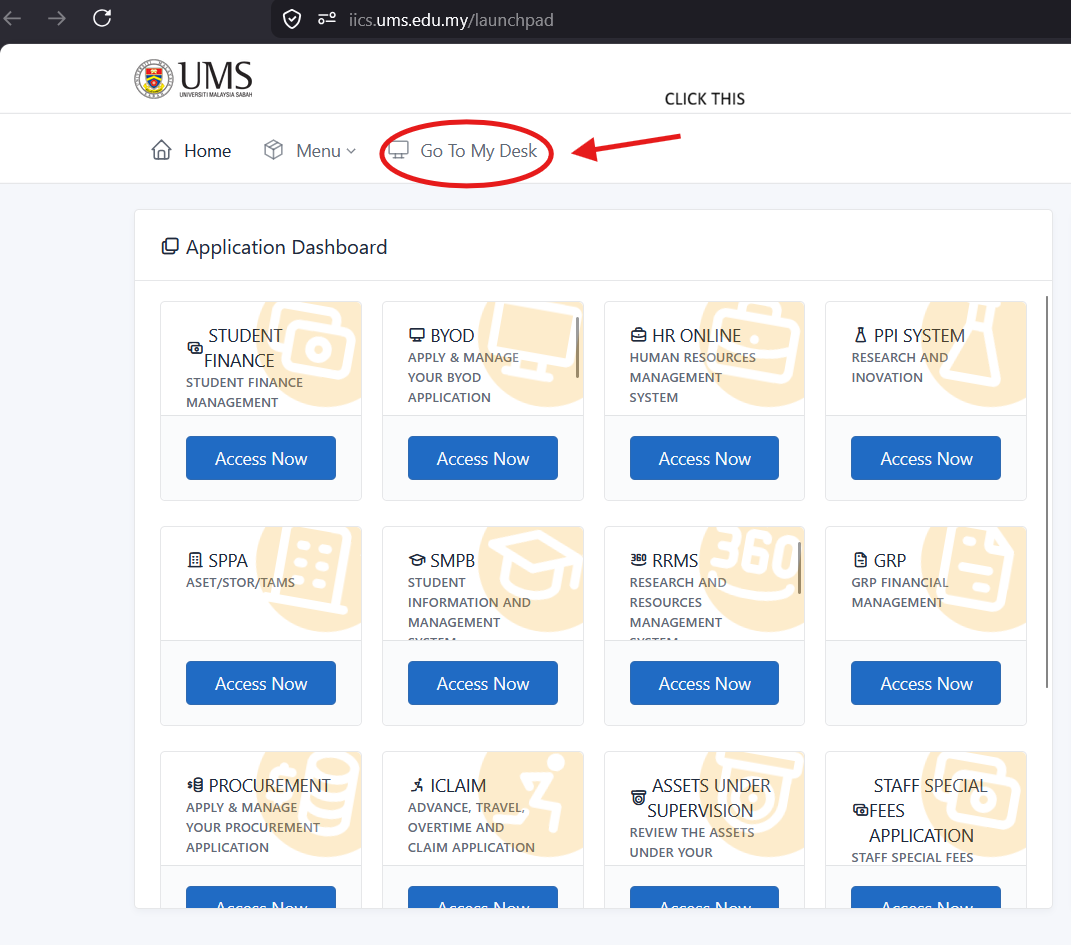
- On Portal Kinabalu, Click the IICS and then on the launchpad page
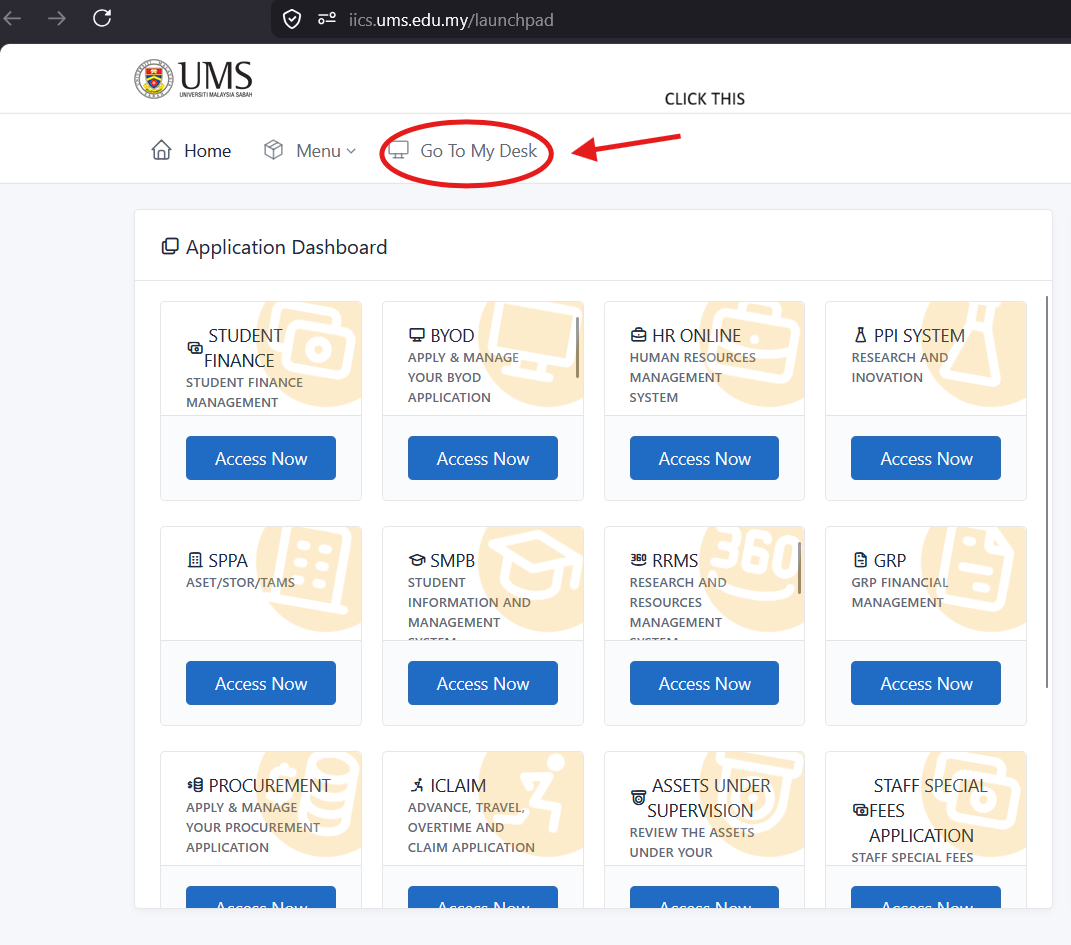
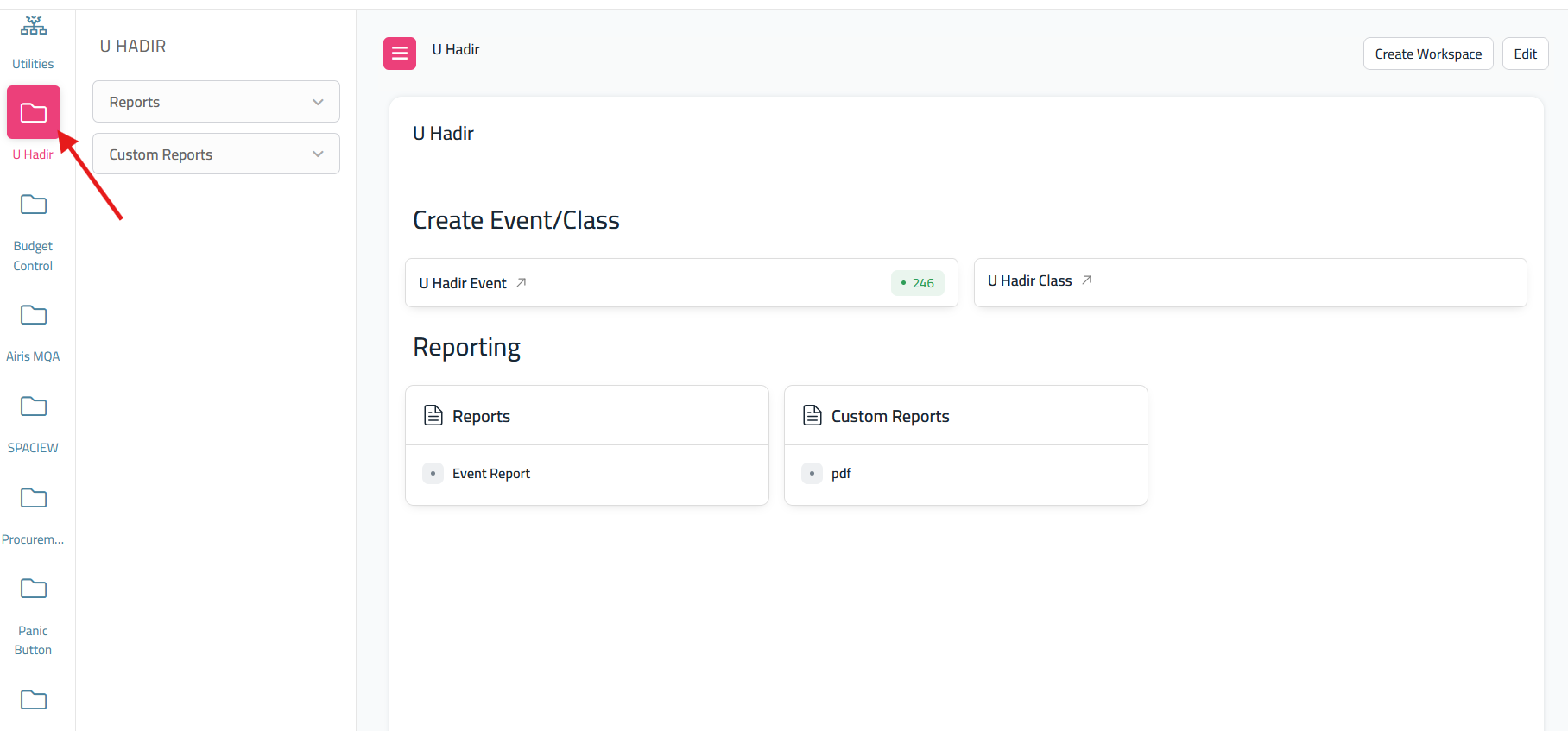
- After click 'My Desk' scroll until you find U Hadir
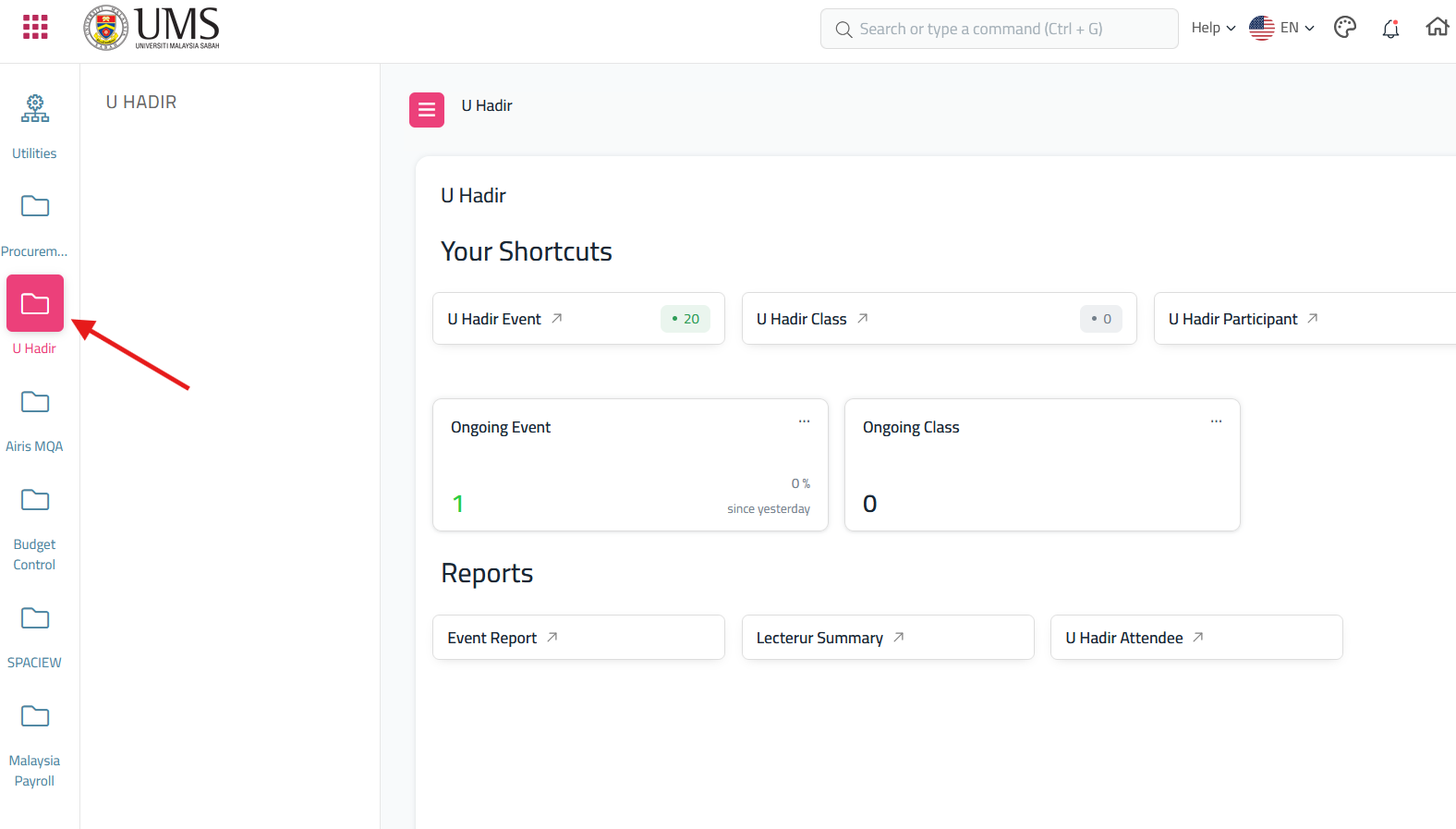
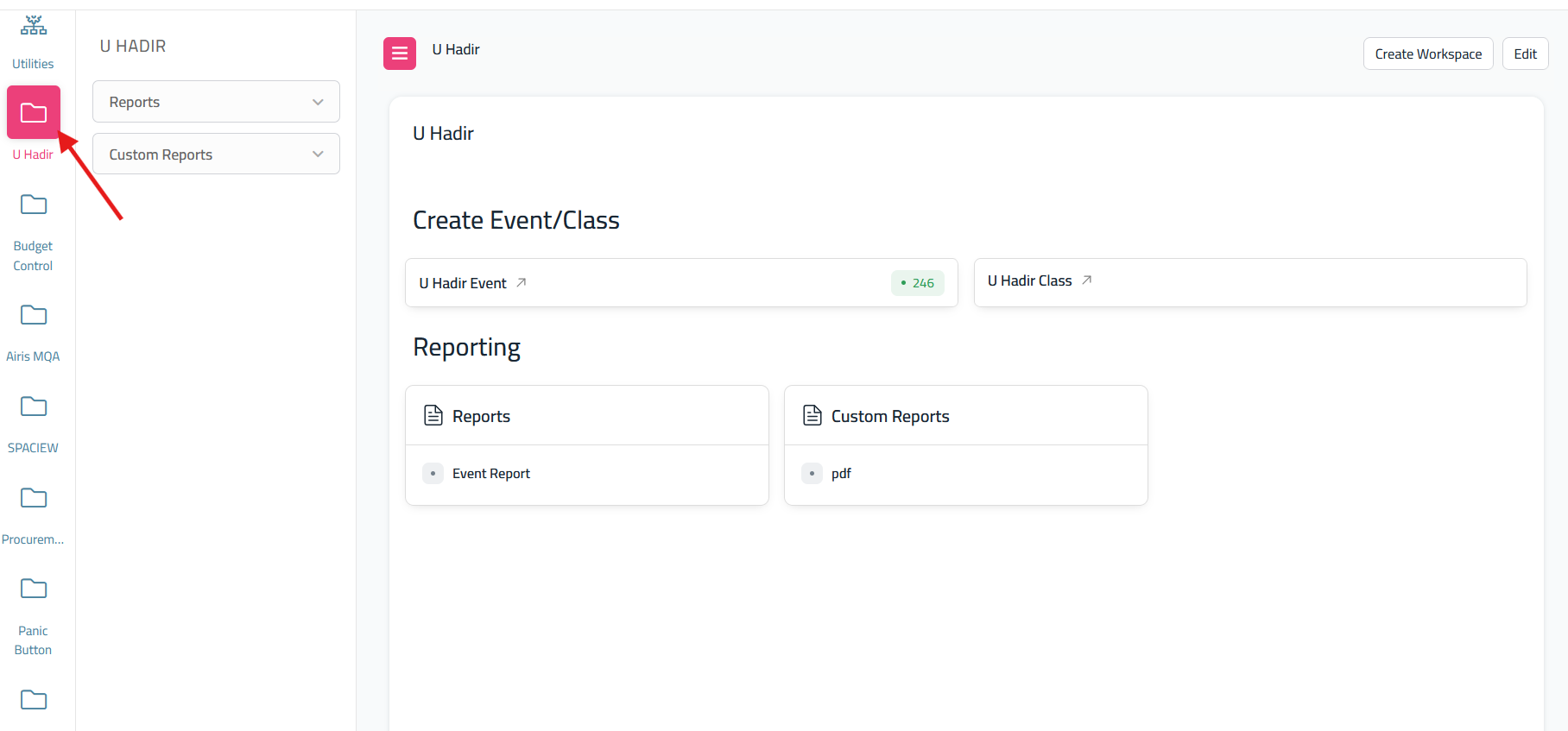
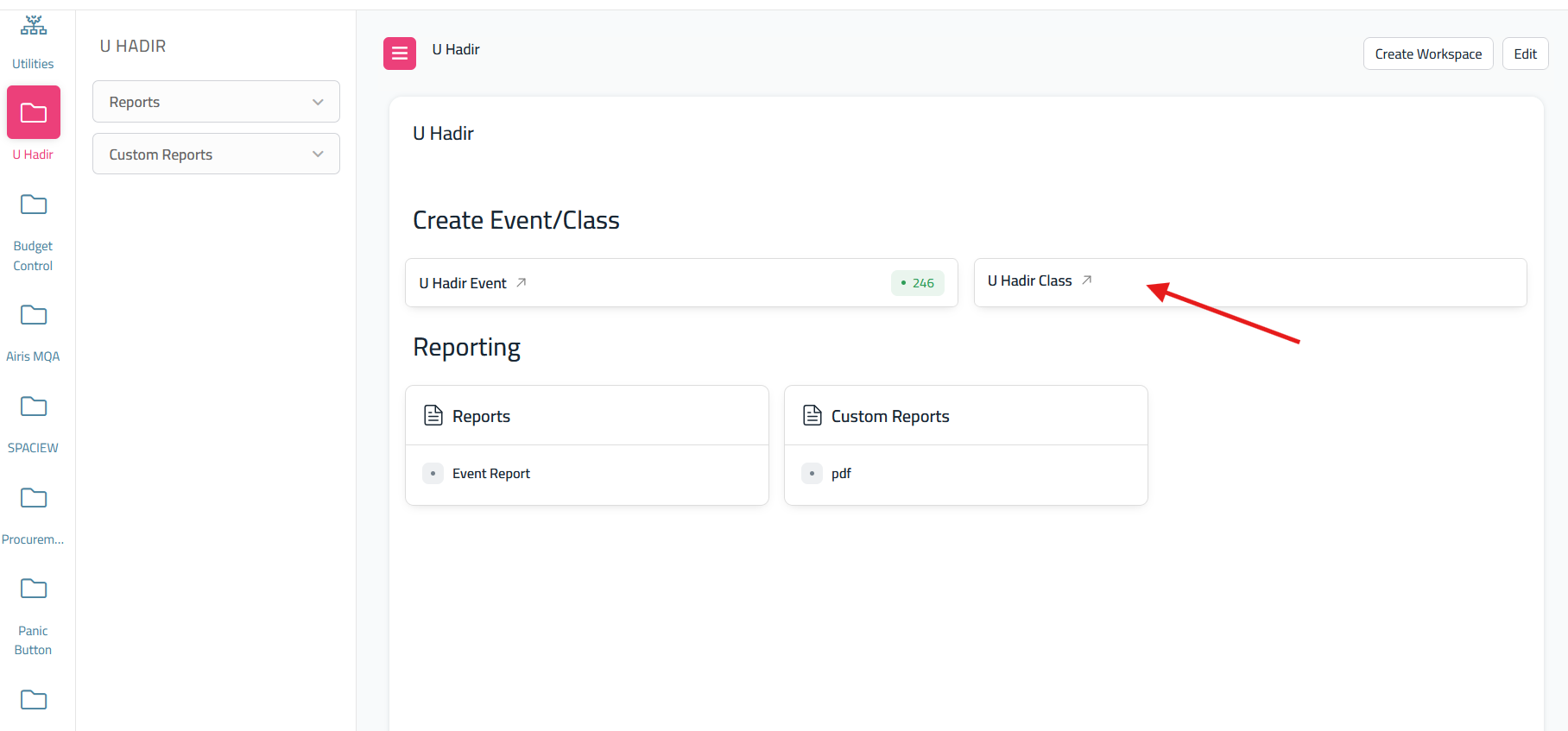
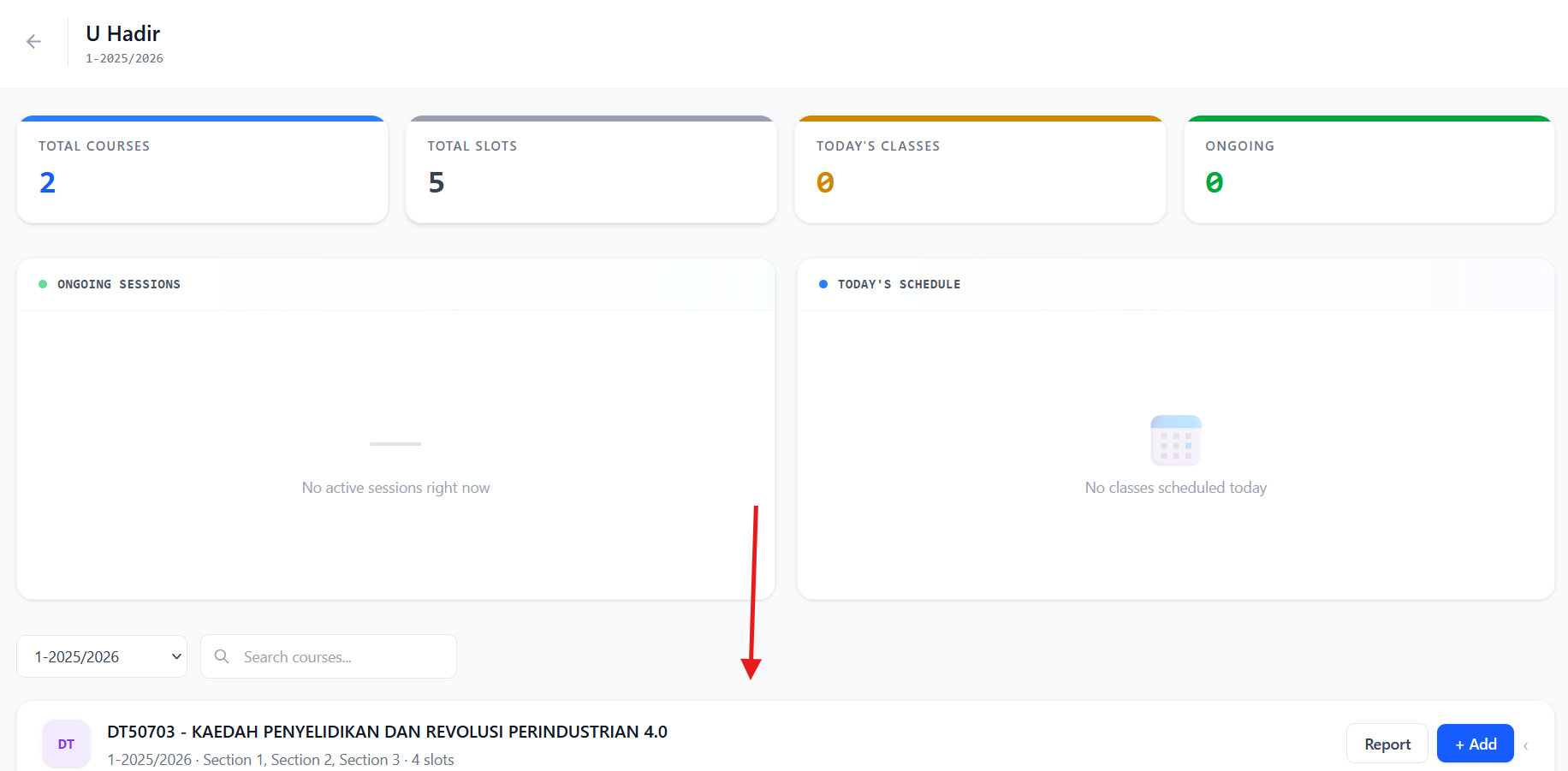
- From the dashboard U Hadir, click the U Hadir Class
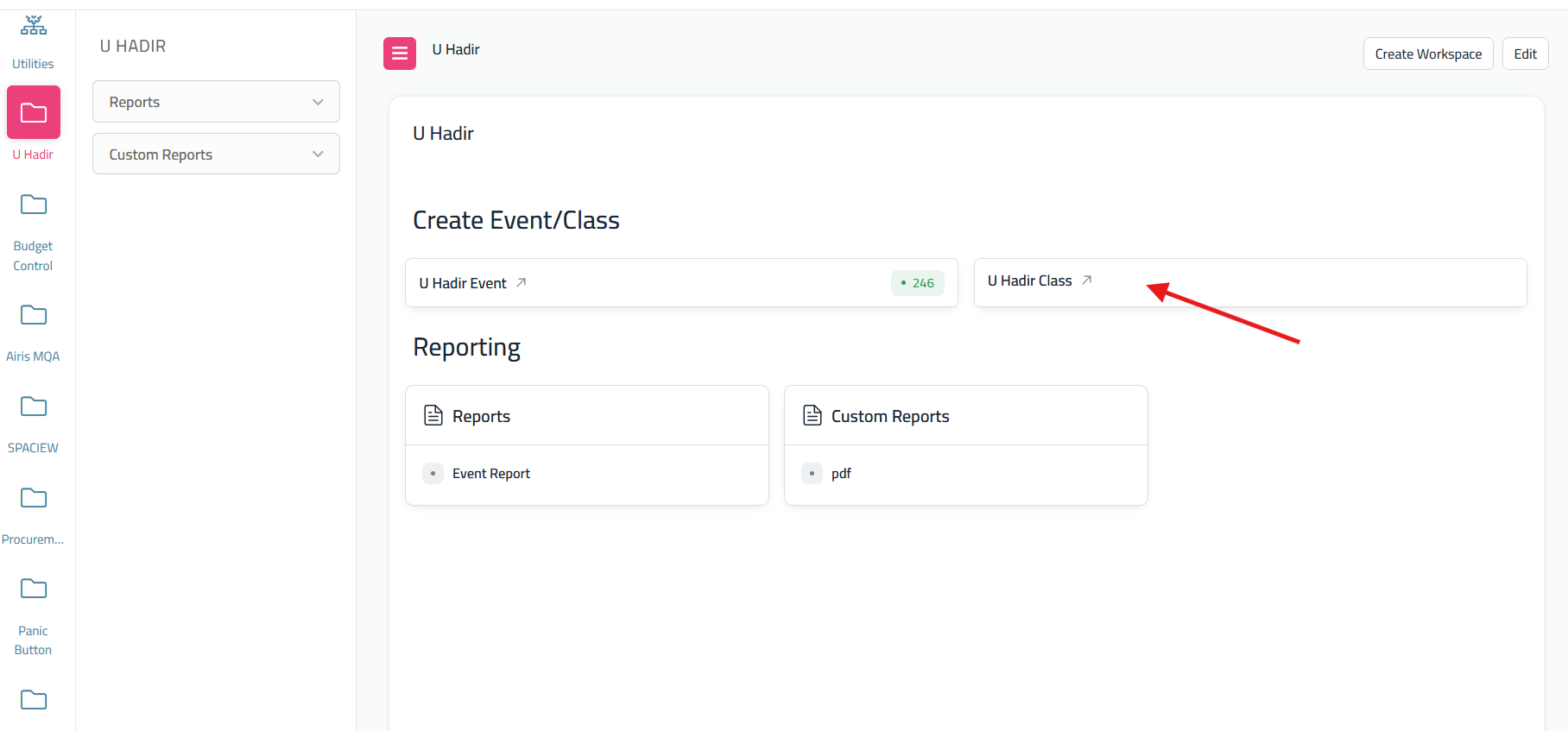
- It will redirect to 'U Hadir Class
DoctypeScreen'.'Scrollanddown to see your teaching courses.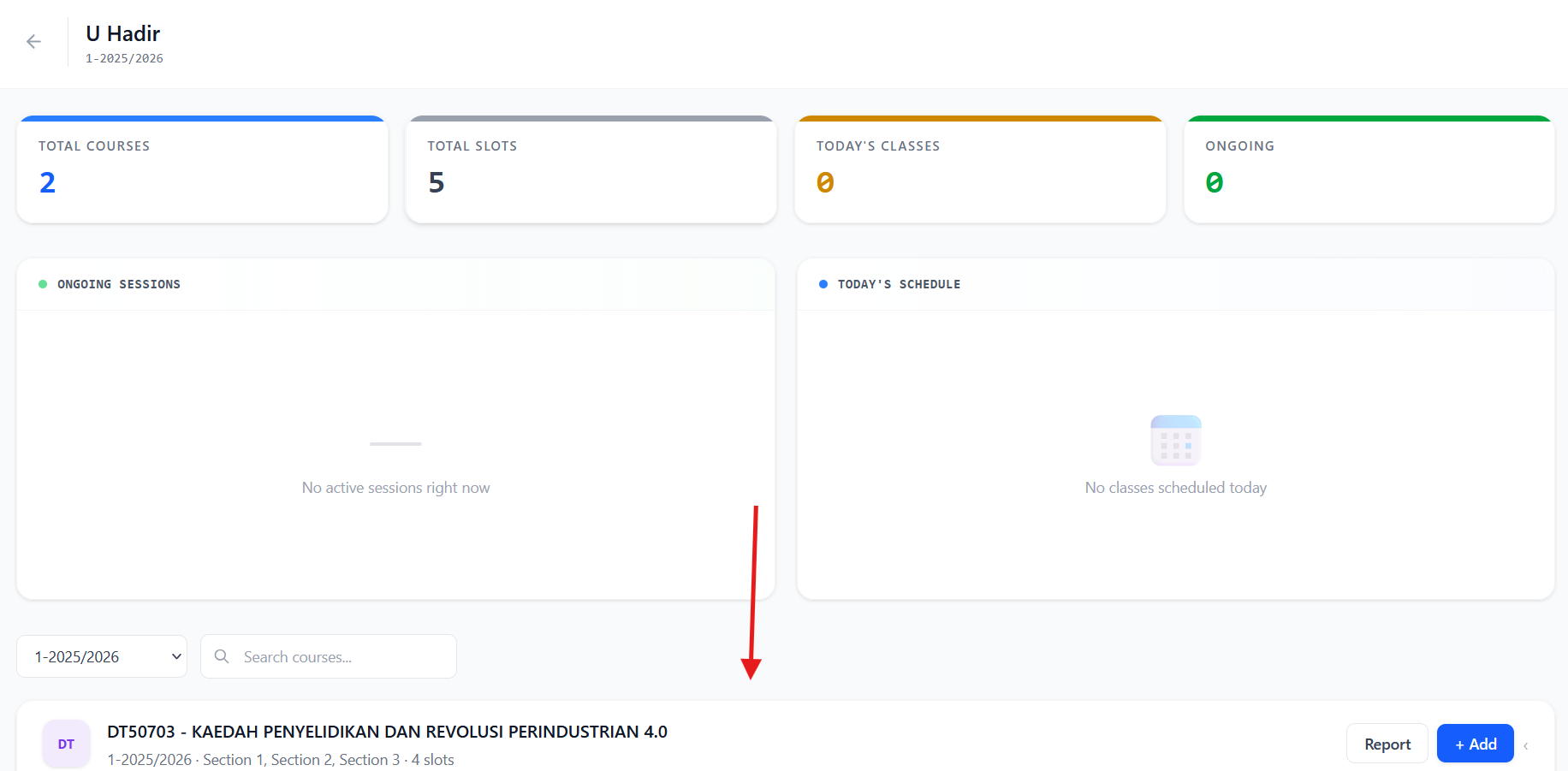
- when you see the teaching courses, if you want to create a
class,class just click'Add U Hadir Class'
add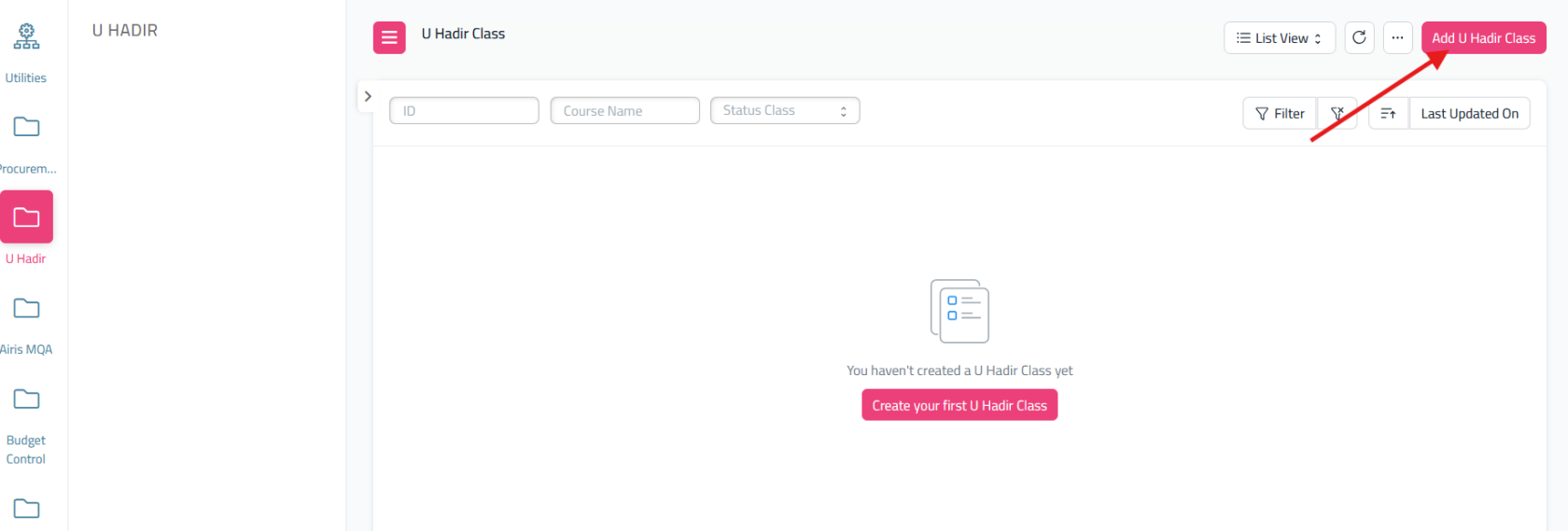
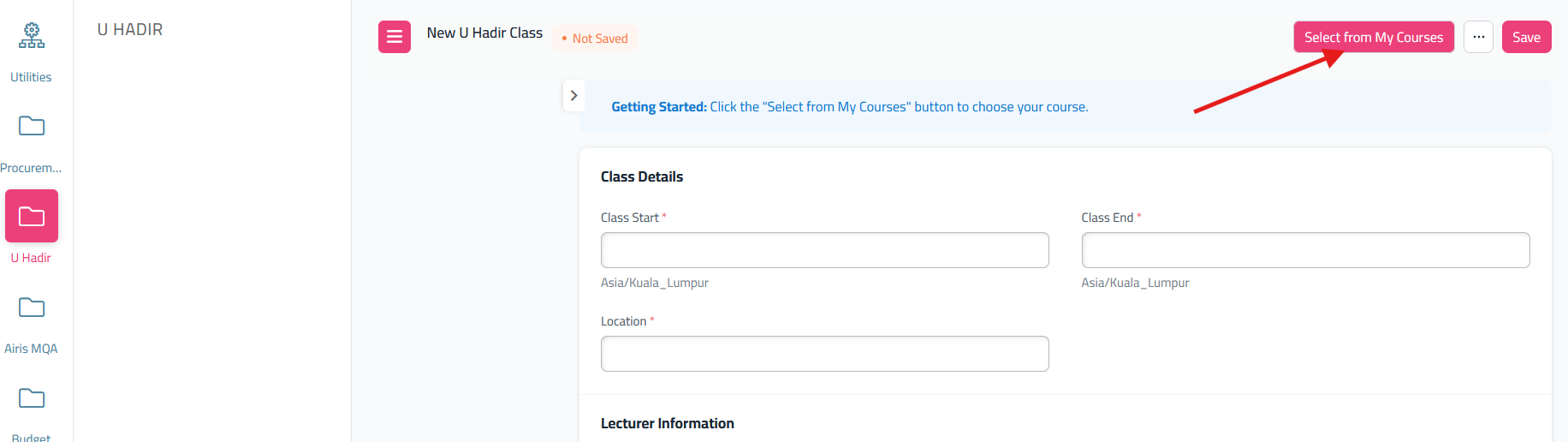
It will redirect to form U Hadir Class. Fill all the form and before save, click 'Select From My Courses'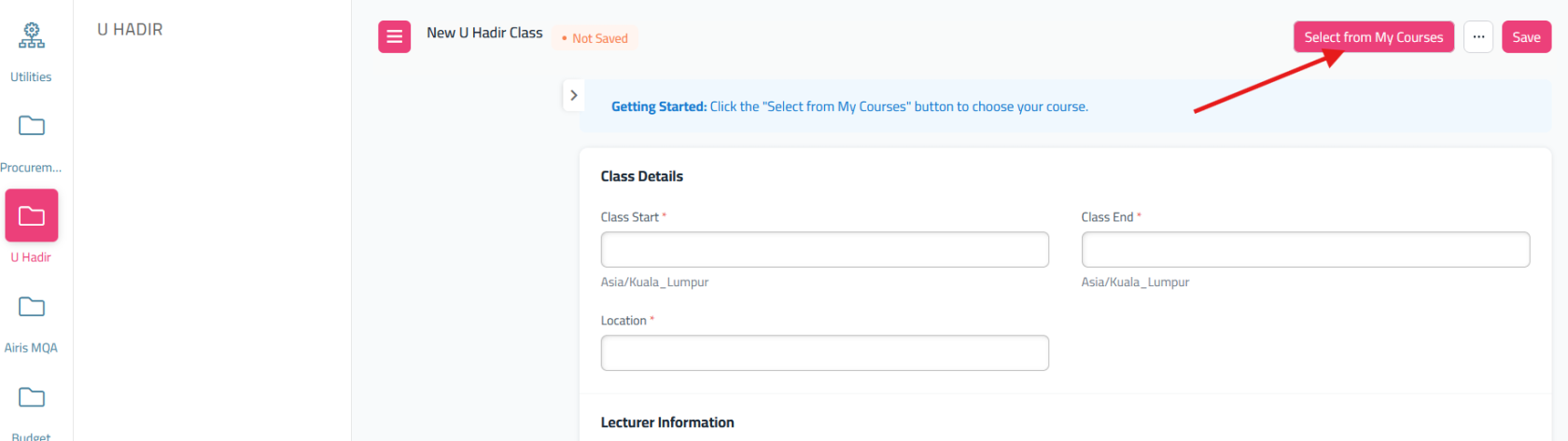

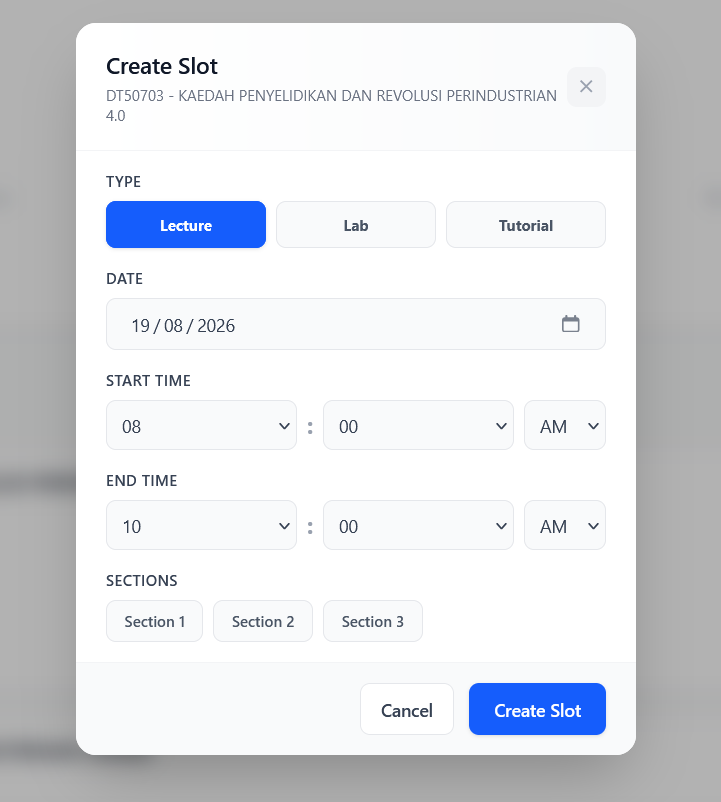
- it will show this
popuppopup.ofJustyourfillcoursethe form andselectcreatecourses that you will teach during the class
slot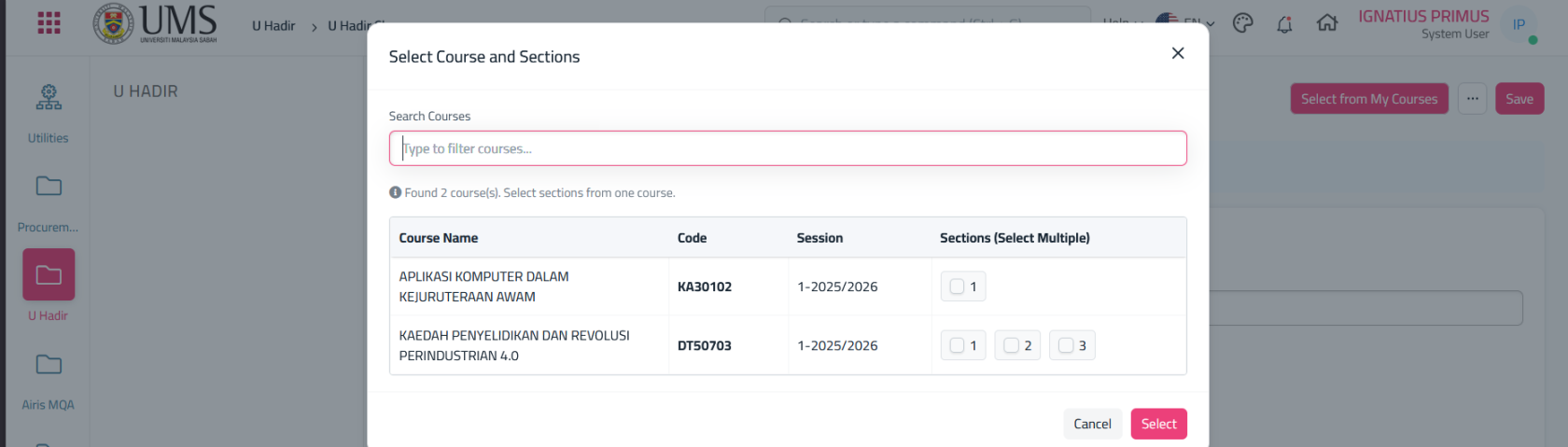
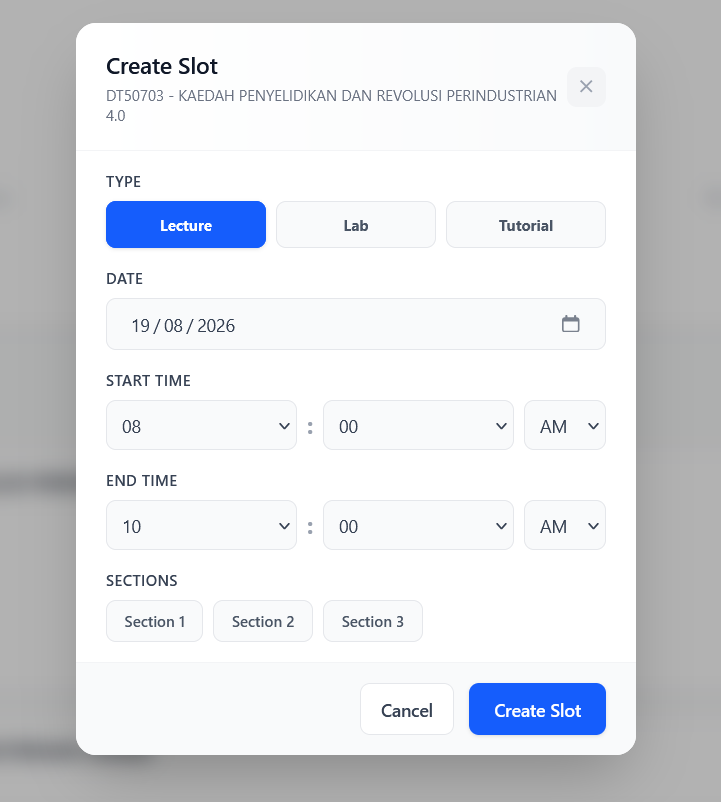
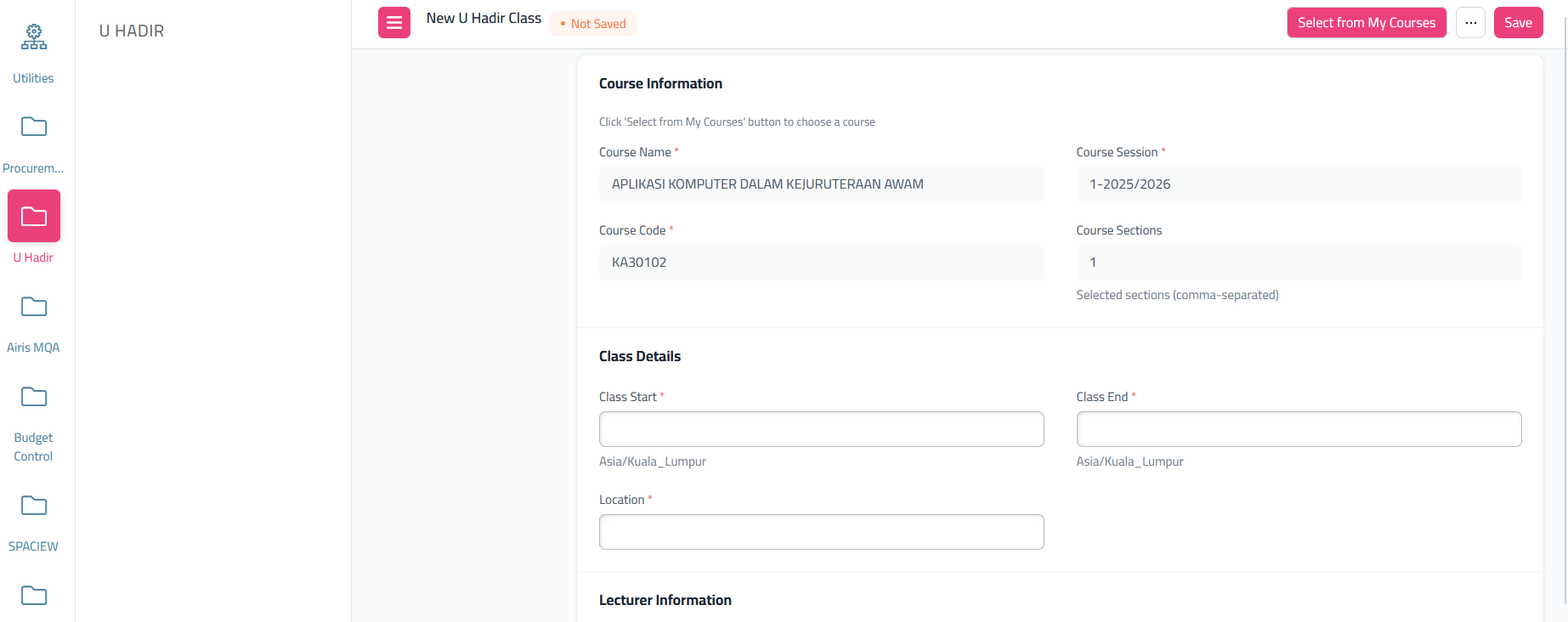
- After
select,created,it will show another form need to fill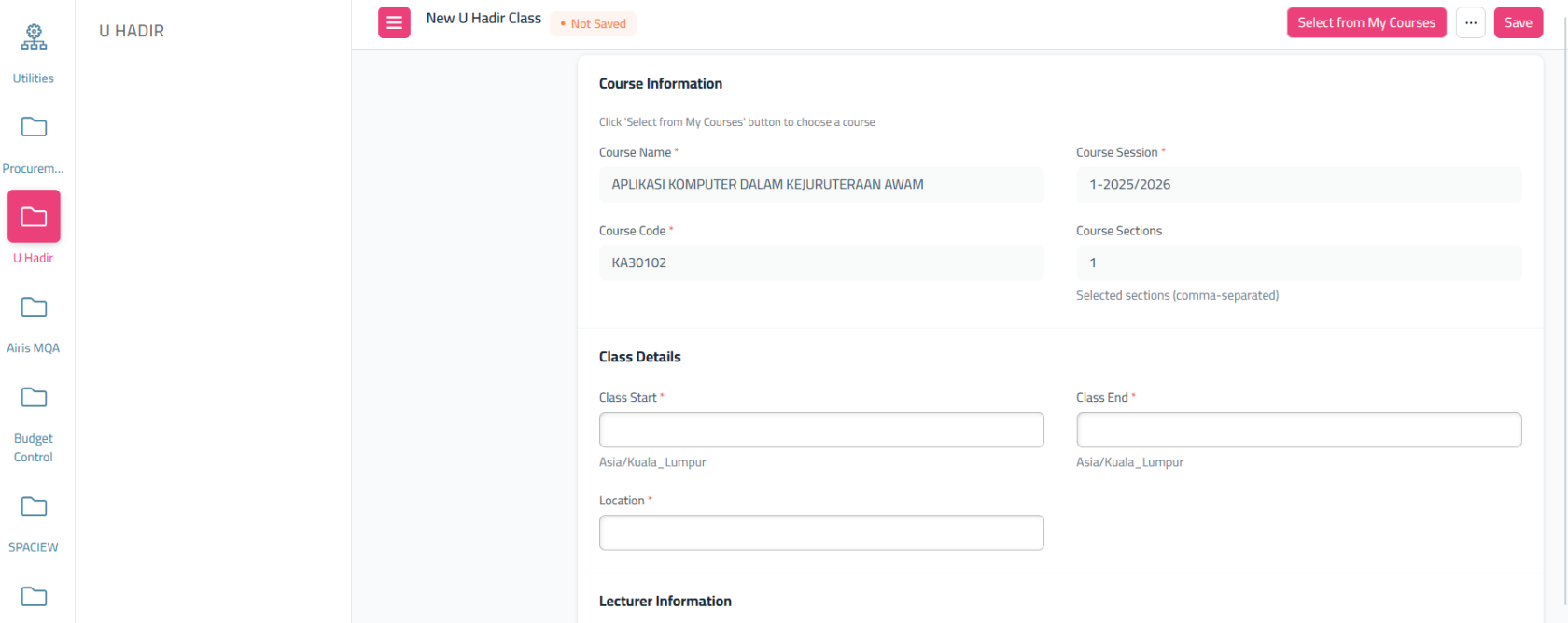
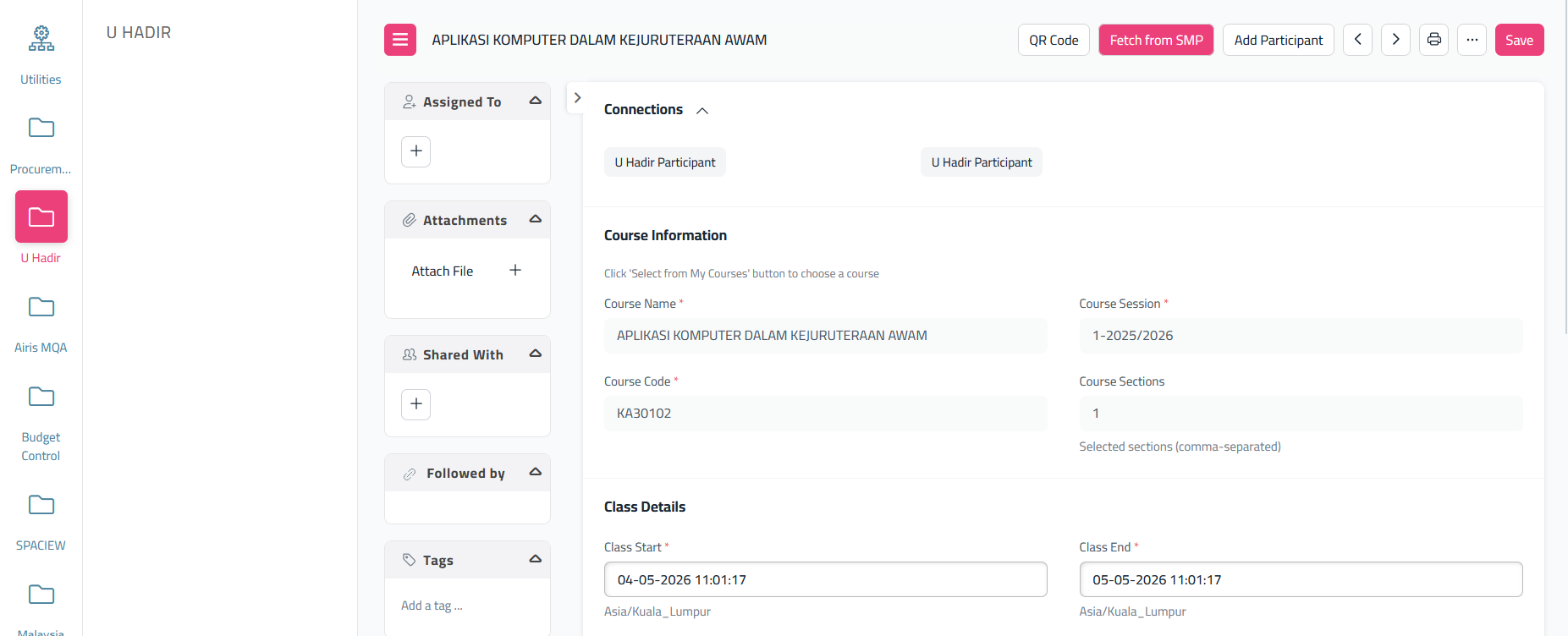
fill all of this, and click 'Save' After save, it will show like this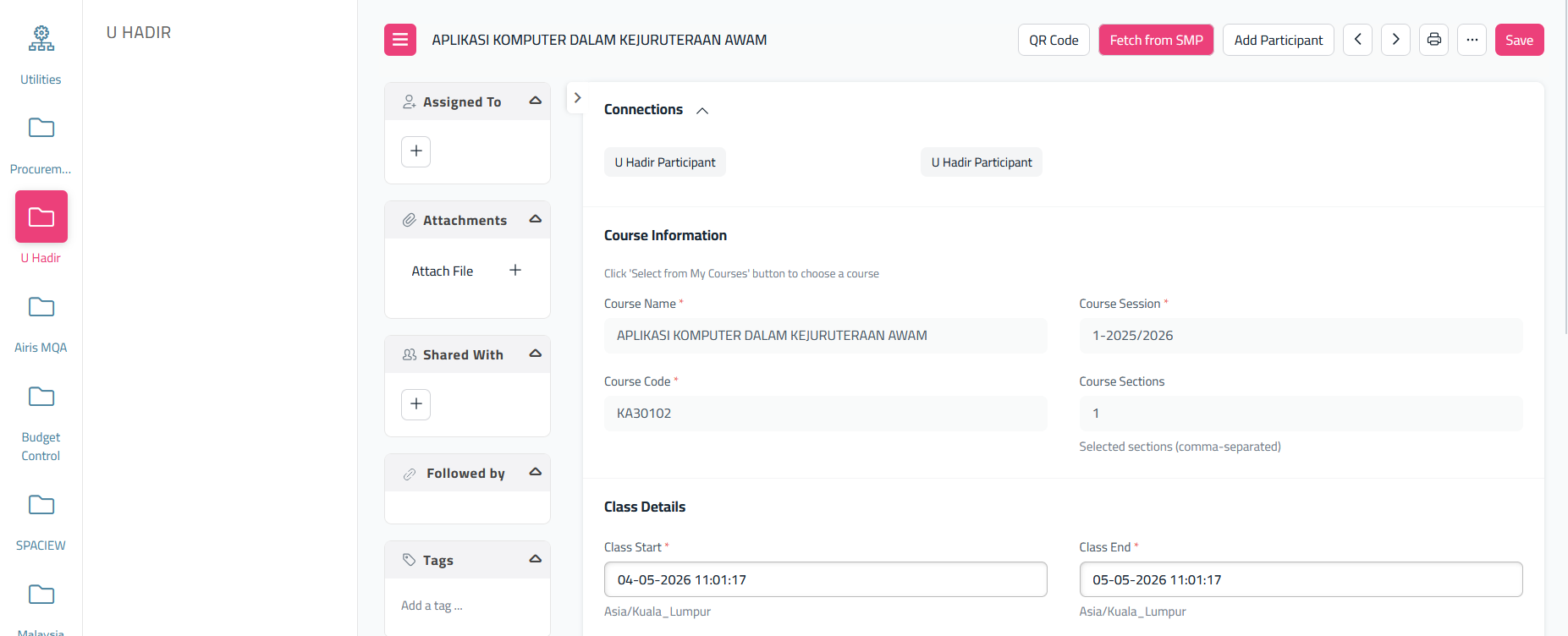
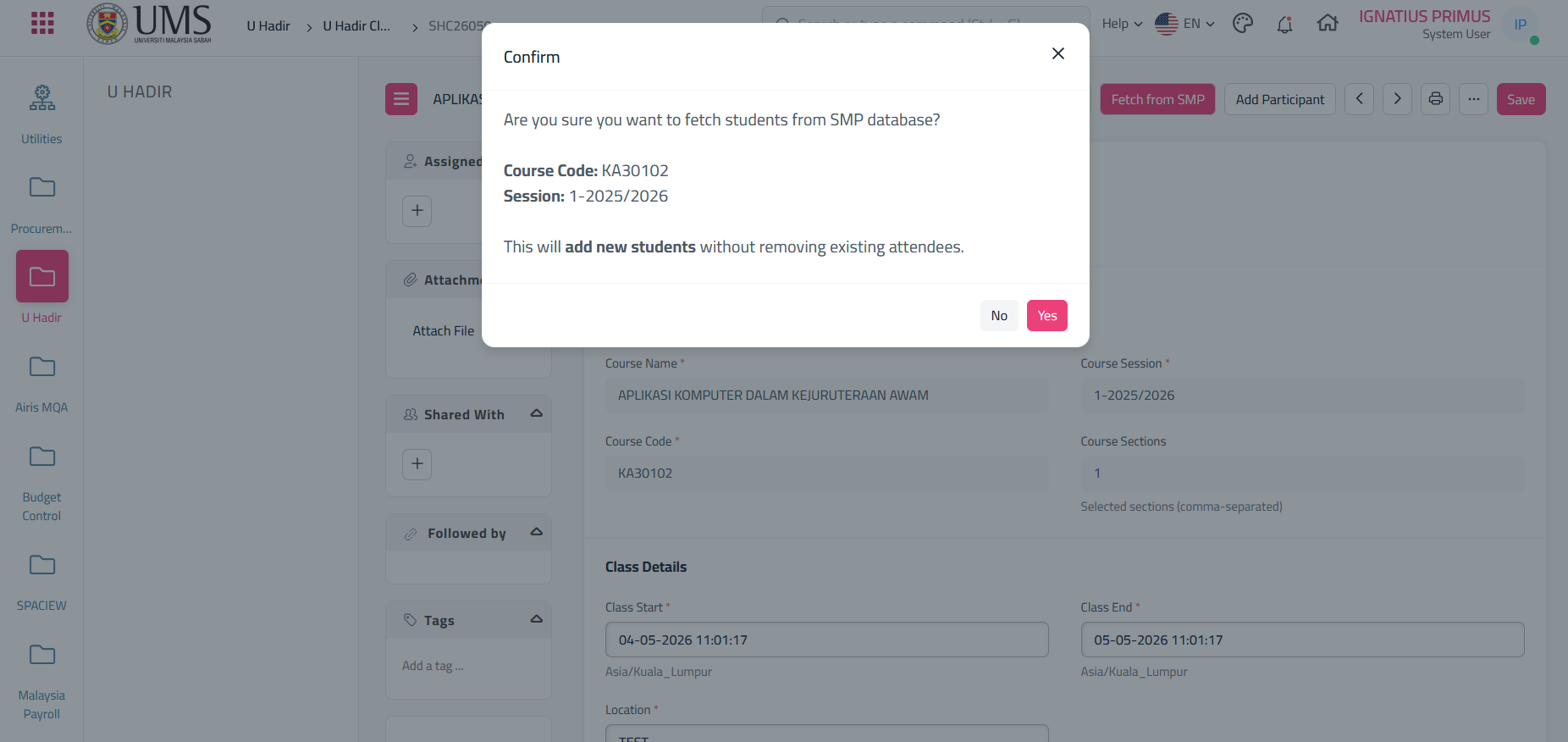
To make the student can scan the qr, we need to 'Fetch From SMP'. Just click it and accept the popup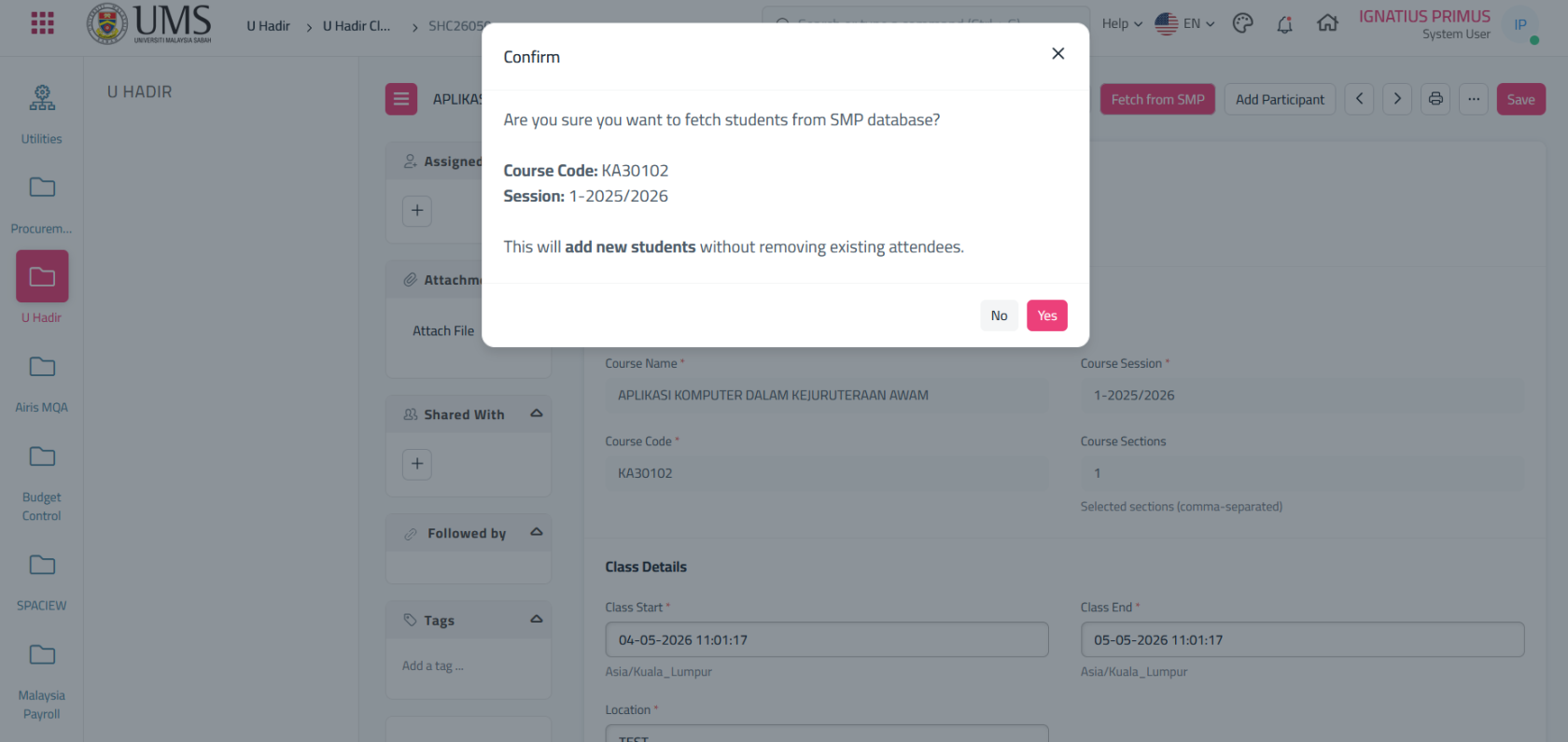
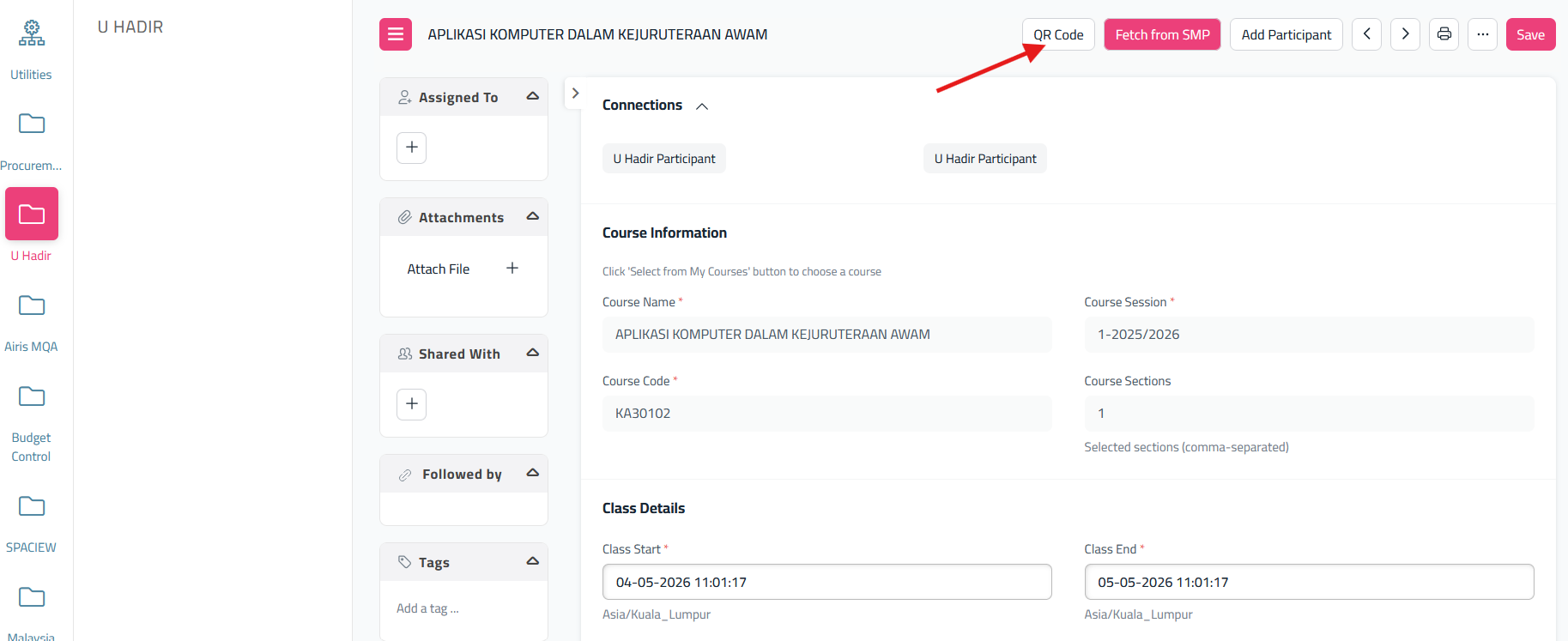
Click'Yes'and it will automatically add all students enrolled in the course assigned to youClick this 'QR Code'
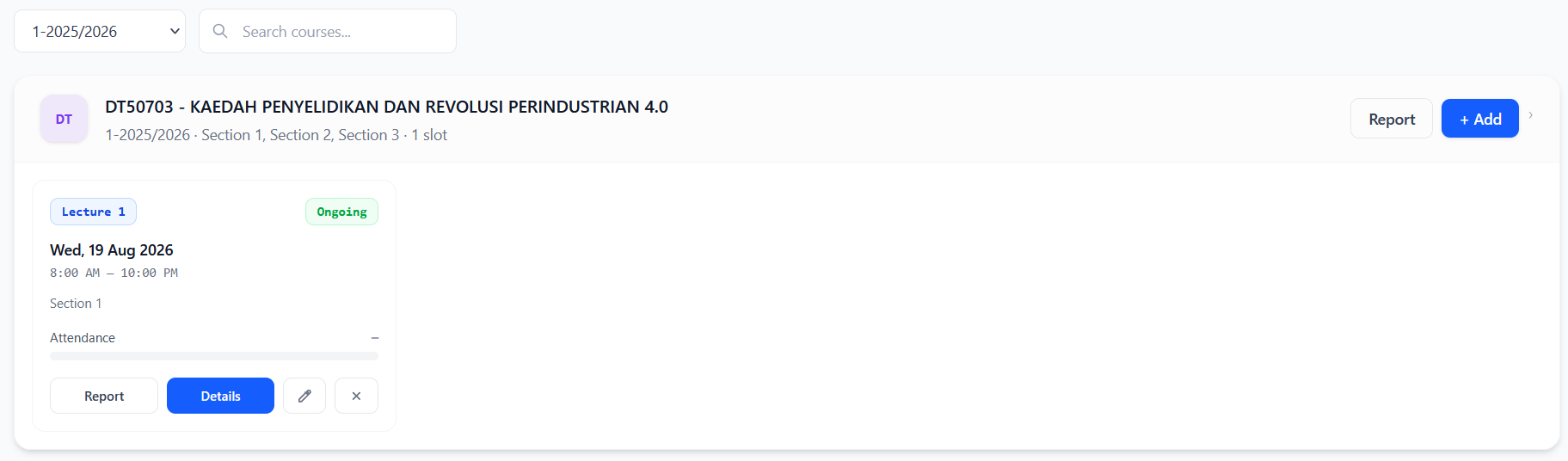
newly created class. if student want to attend your teaching class, click the details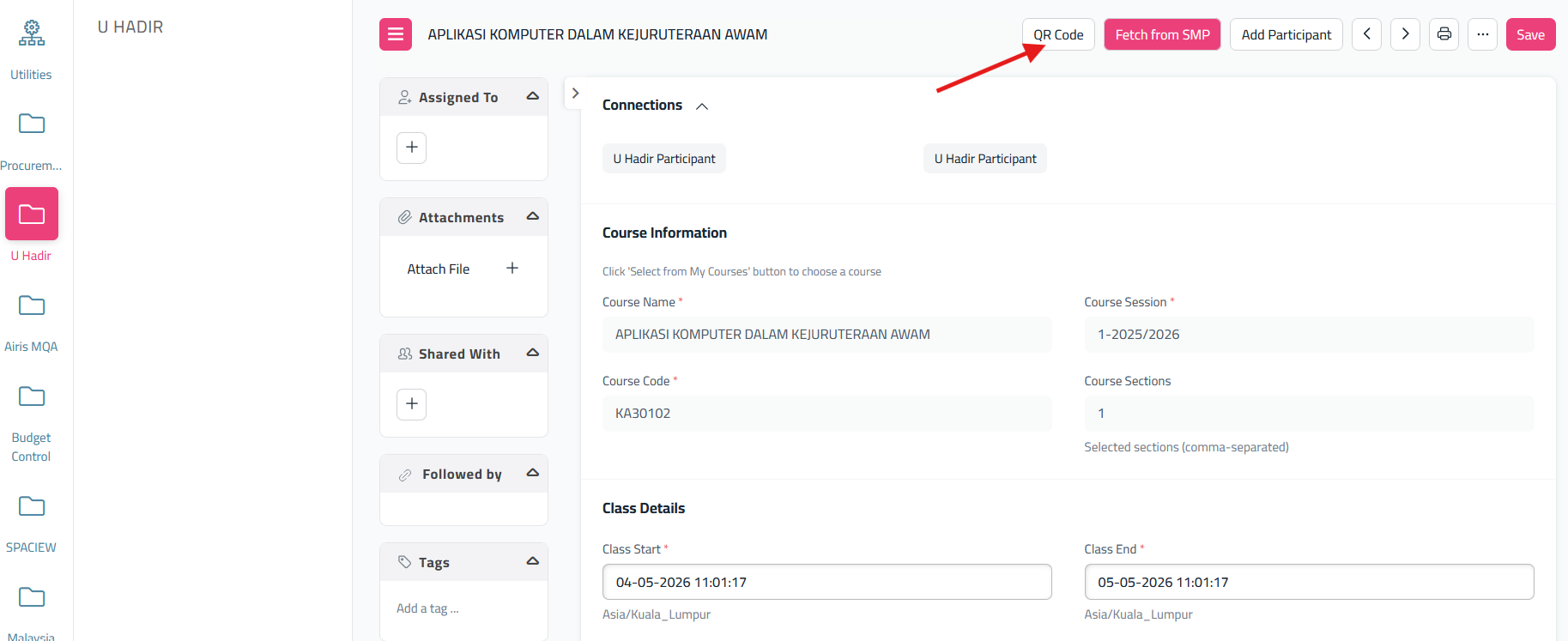
QR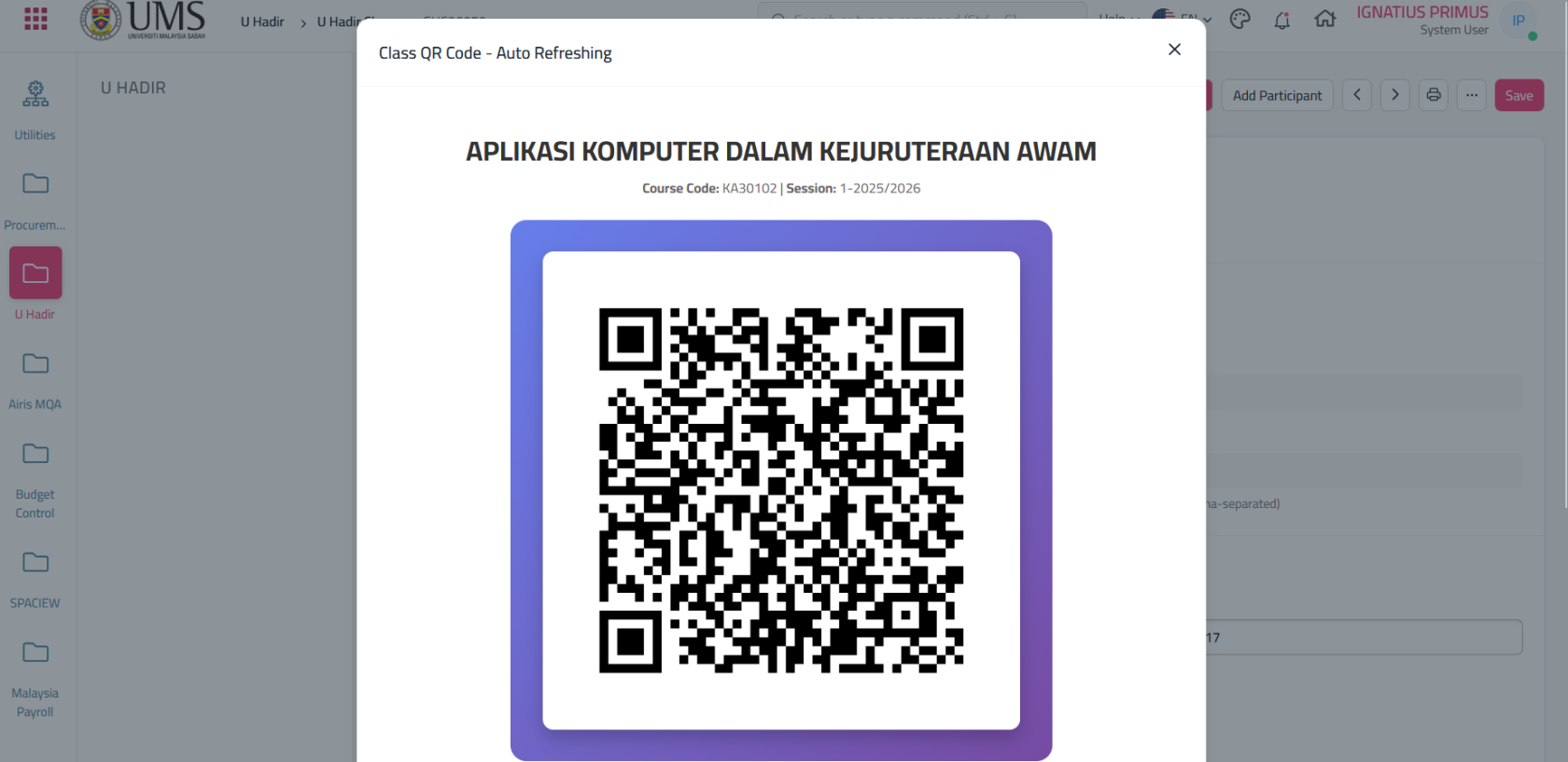
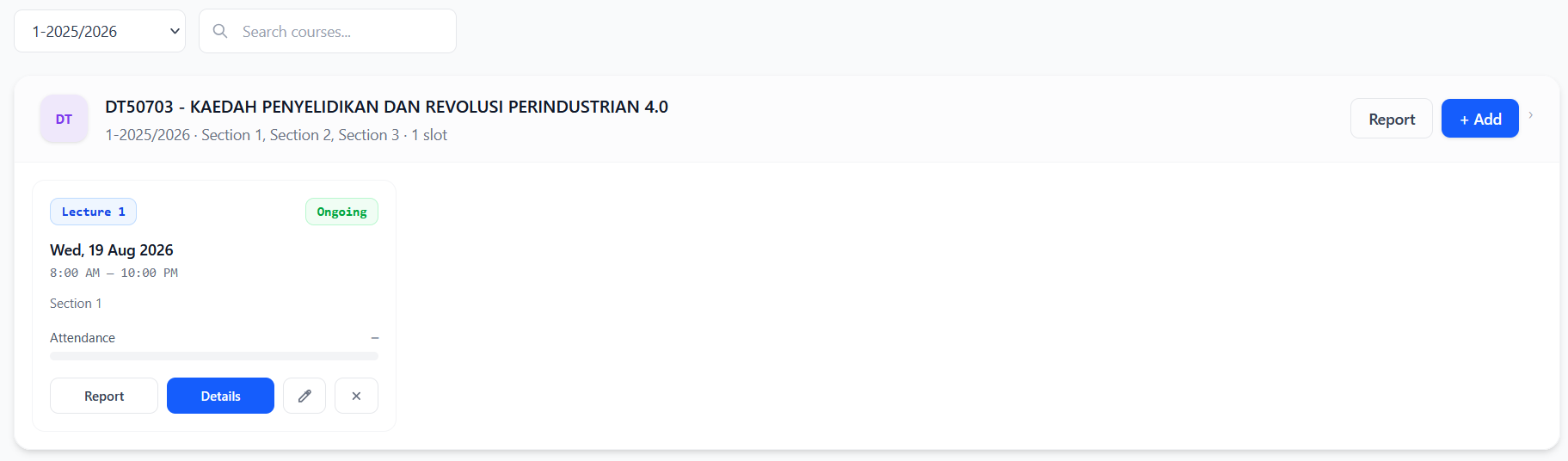
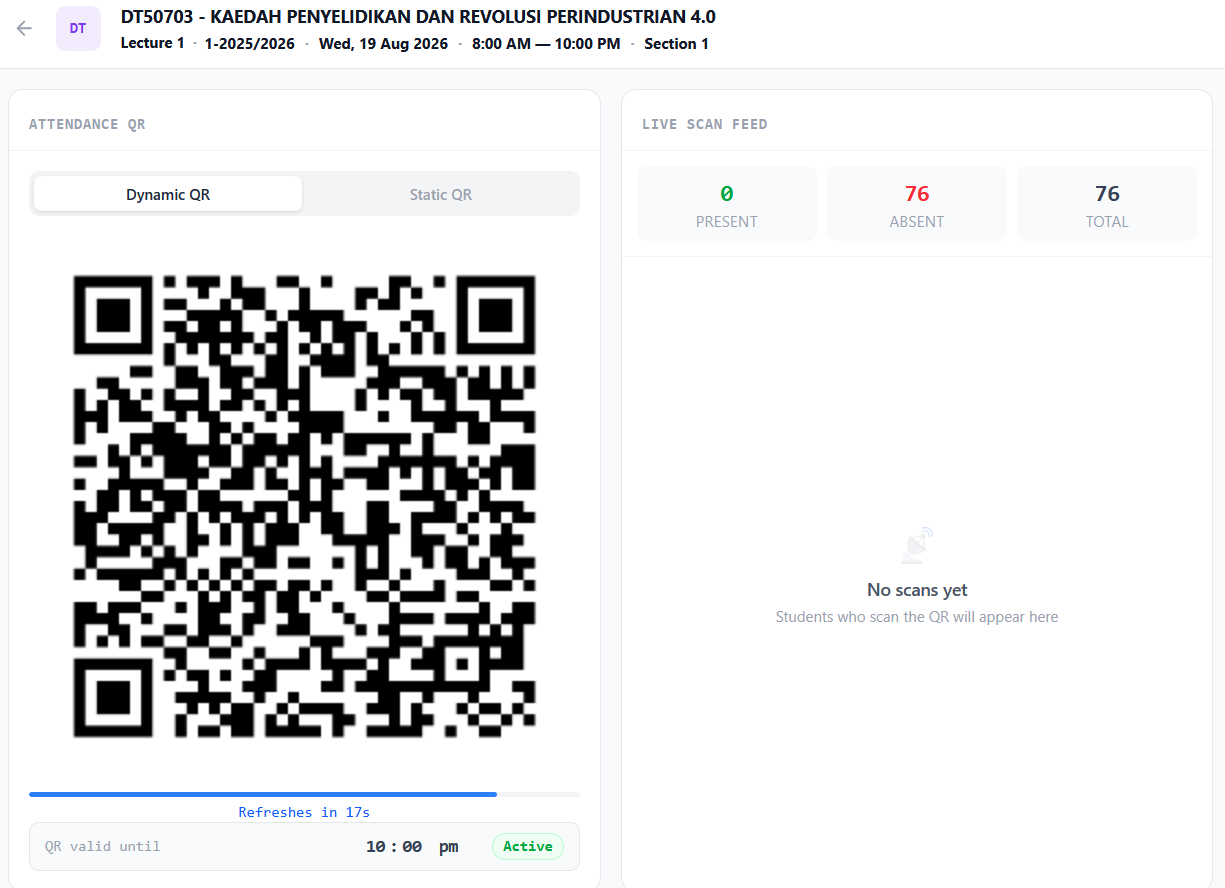
For your info,QR For U Hadir Class will always refresh.- And it will show this screen that contains qr. if you want dynamic, choose dynamic, if you want static, choose static and it will give a link qr code then you can send to your student.
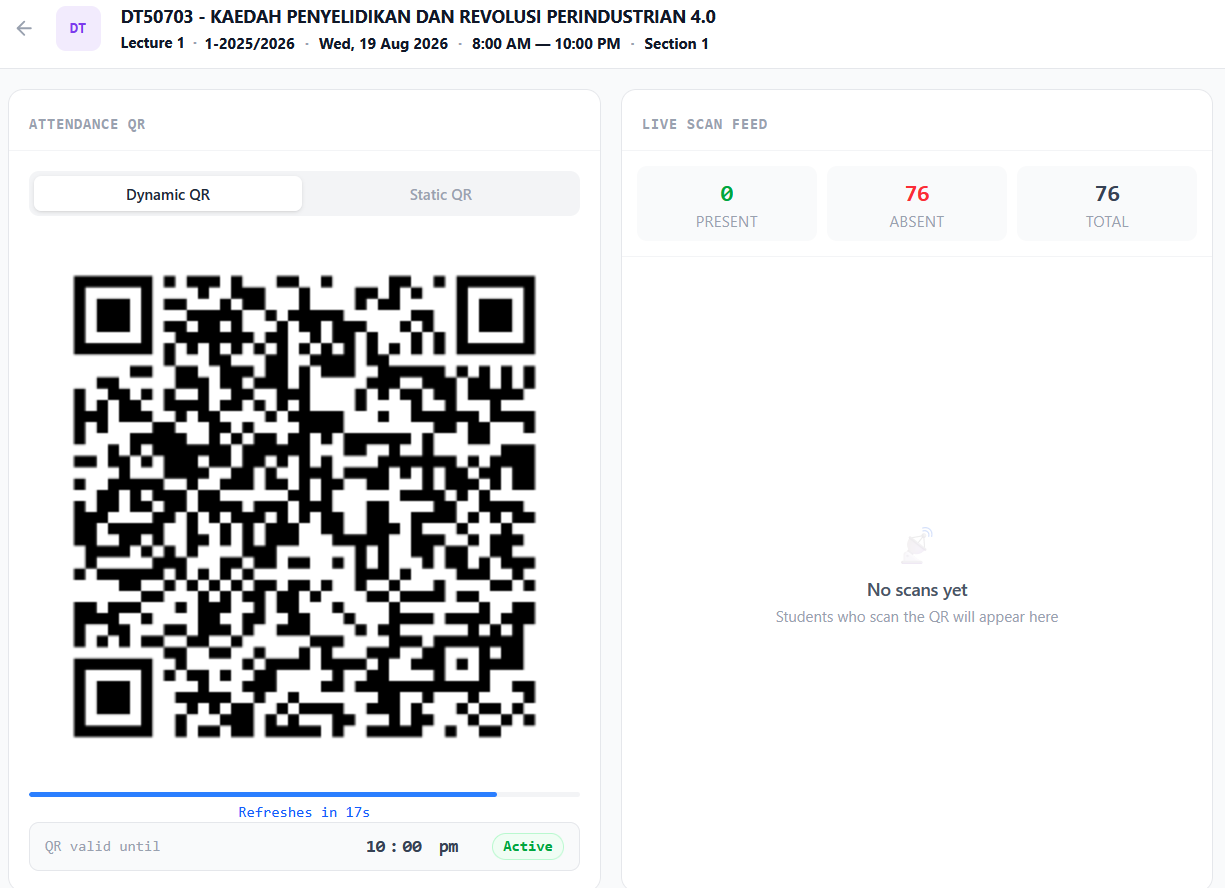
- The attendance record will be on the right side. Student should use their ums go superapp to scan the qr