Dashboard Pentadbir JAFPIB
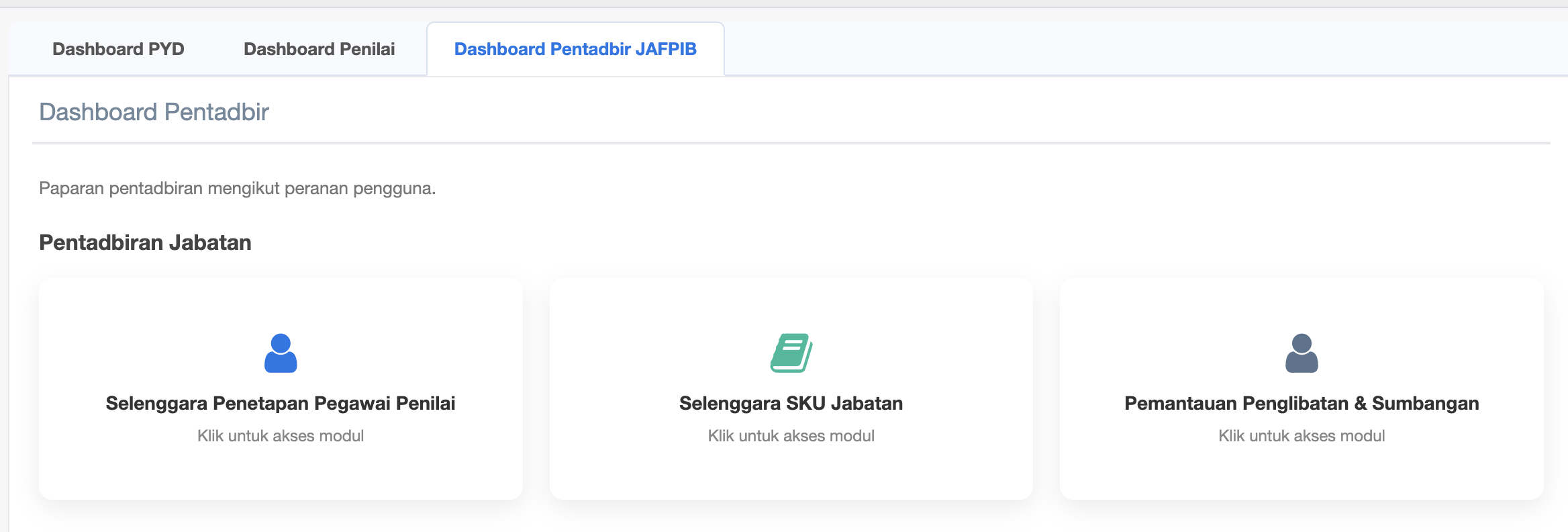
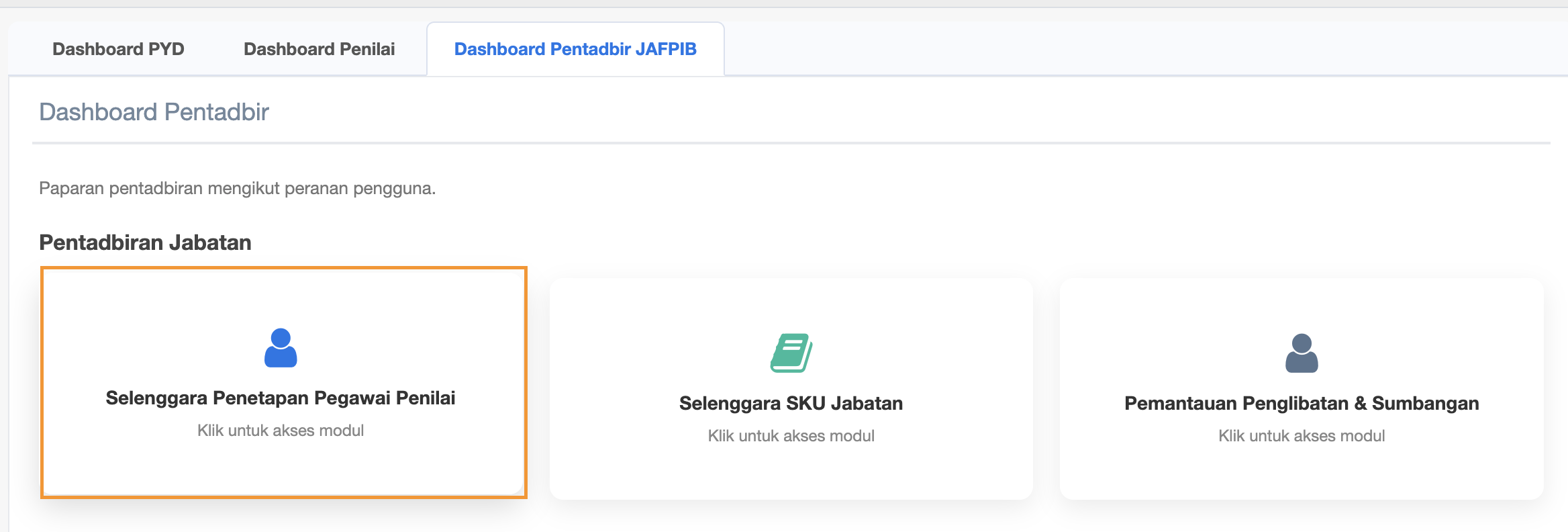
- Selenggara Penetapan Pegawai Penilai
- Selenggara SKU Jabatan
- Pemantauan Penglibatan & Sumbangan
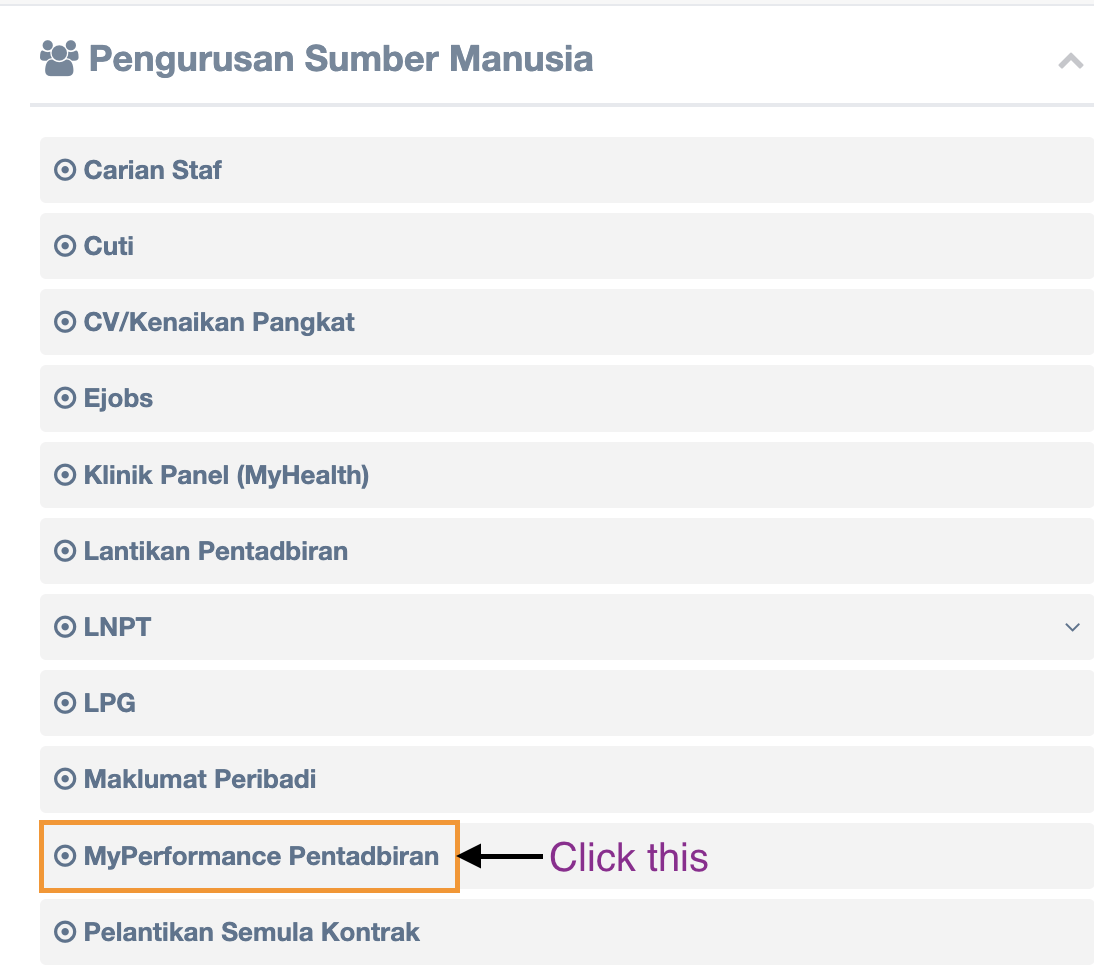
Step 2 : Click MyPerformance Pentadbiran
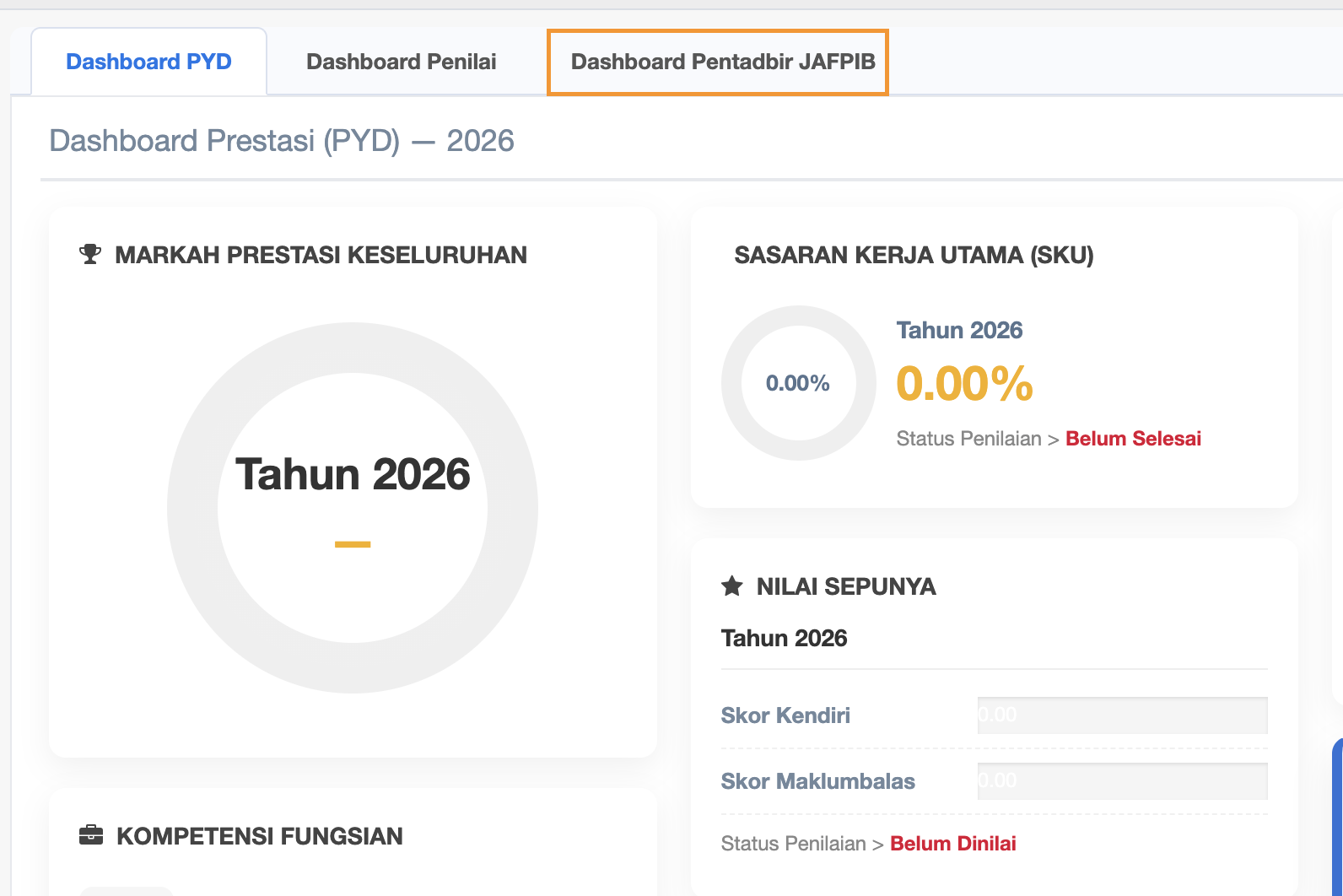
Step 3 : Click Dashboard Pentadbir JAFPIB
Step 4 : Three (3) SUb Menus under Dashboard Pentadbir JAFPIB
Step 5 : Click Sub Menu Selenggara Penetapan Pegawai Penilai
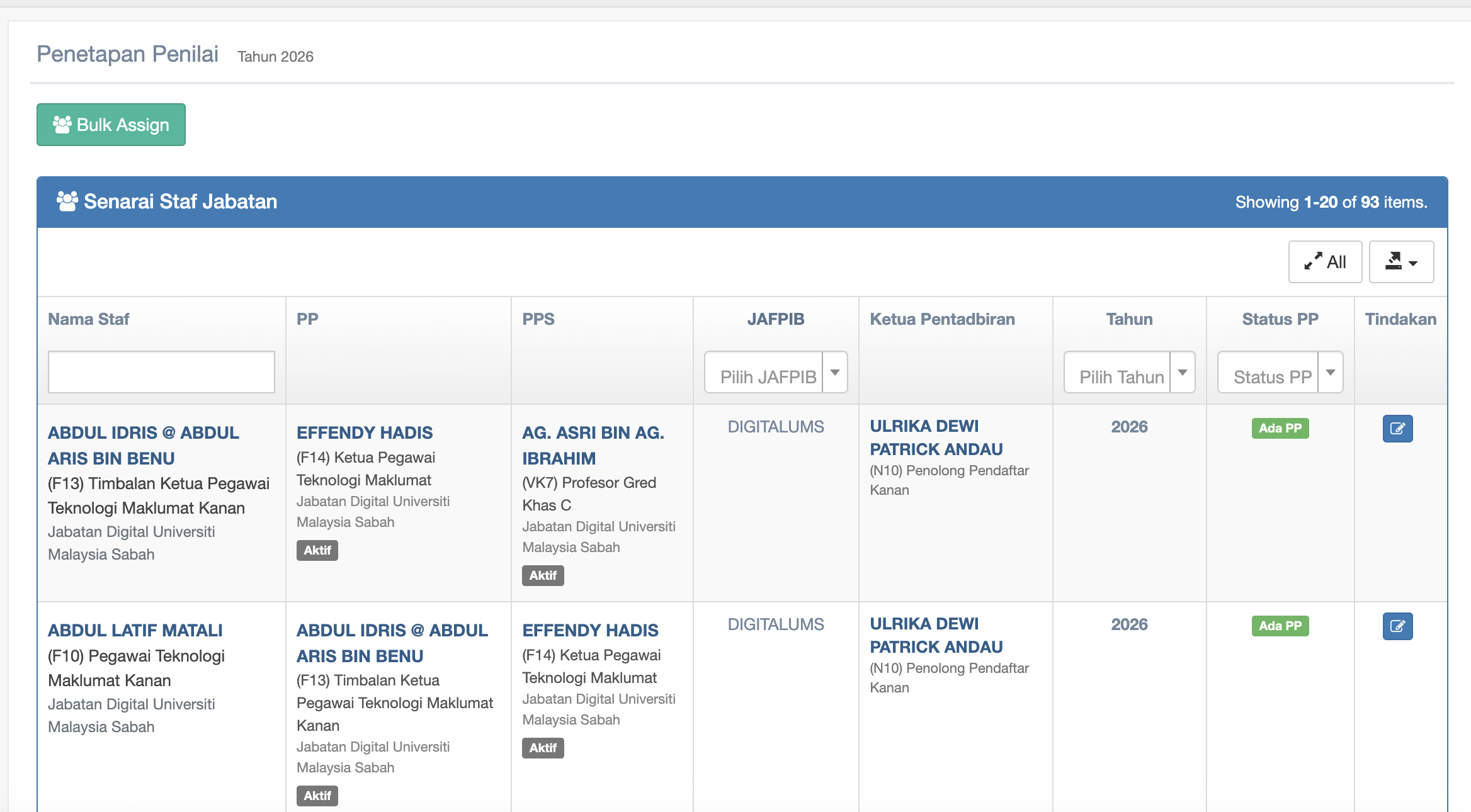
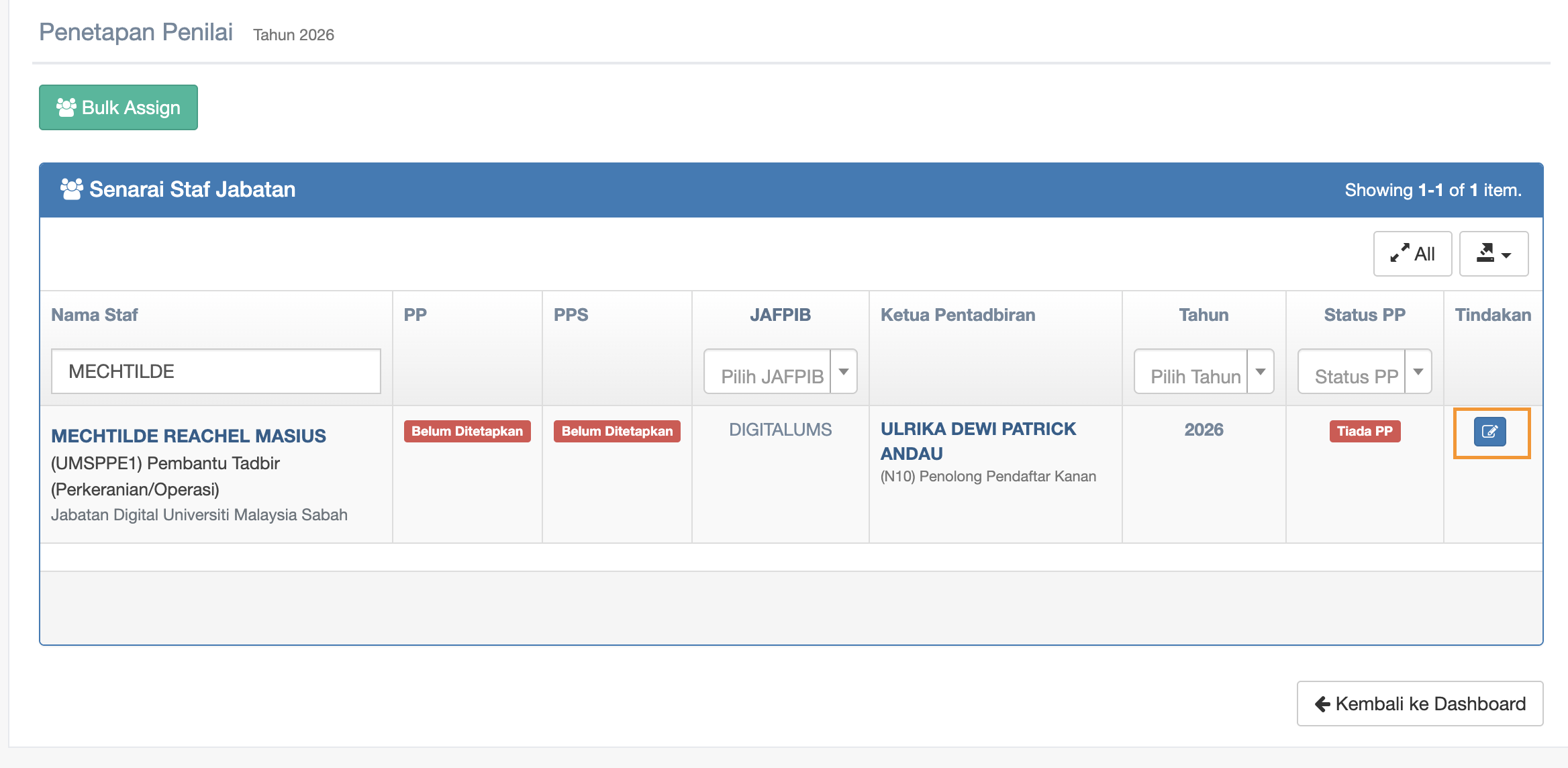
Step 6 : Senarai Staf Jabatan under your Jabatan only
Step 7 : You may search for the Staff's name by entering name in the textbox under Nama Staf
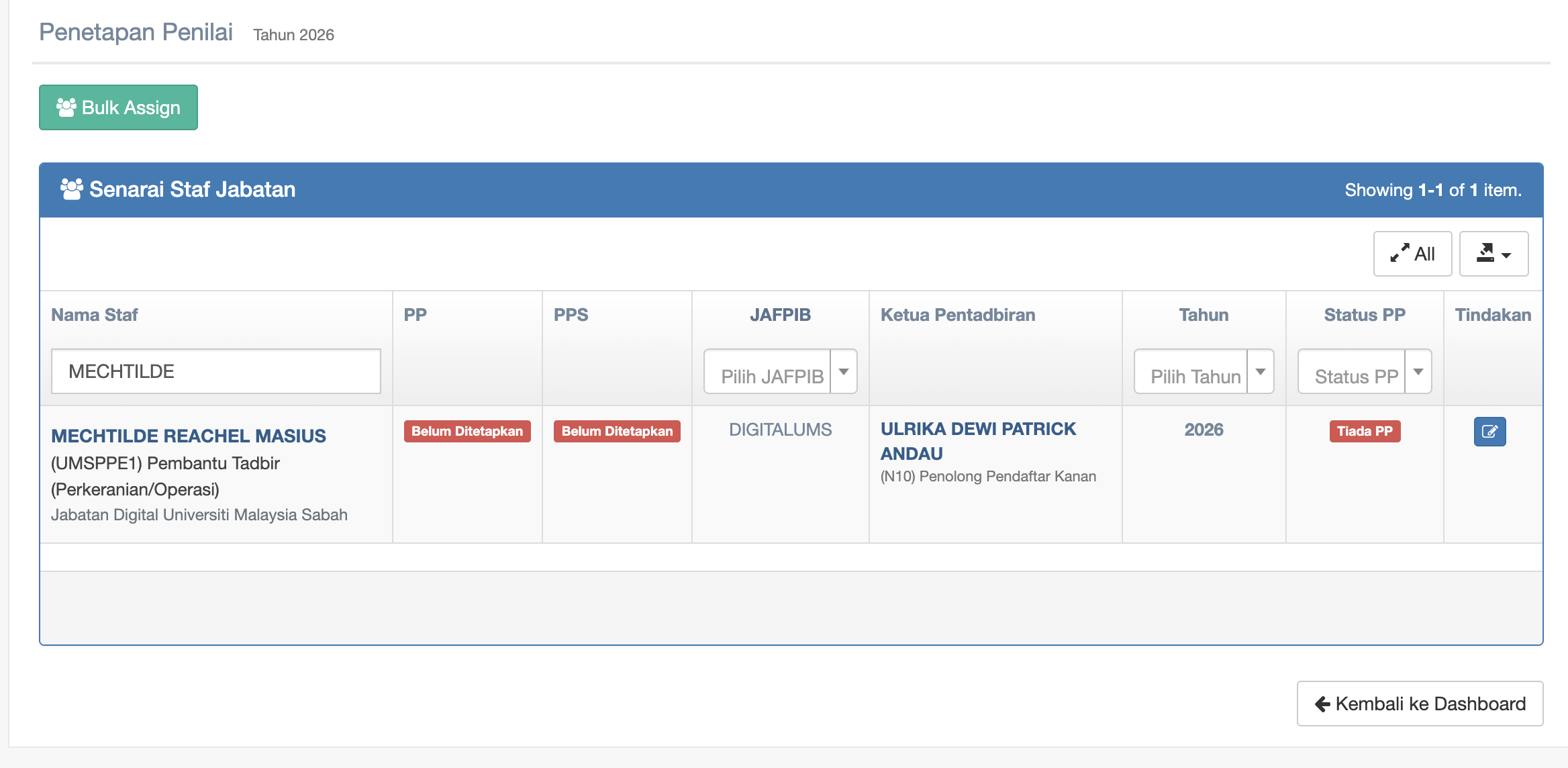
Step 8 : click the checkbox under Tindakan column to start edit
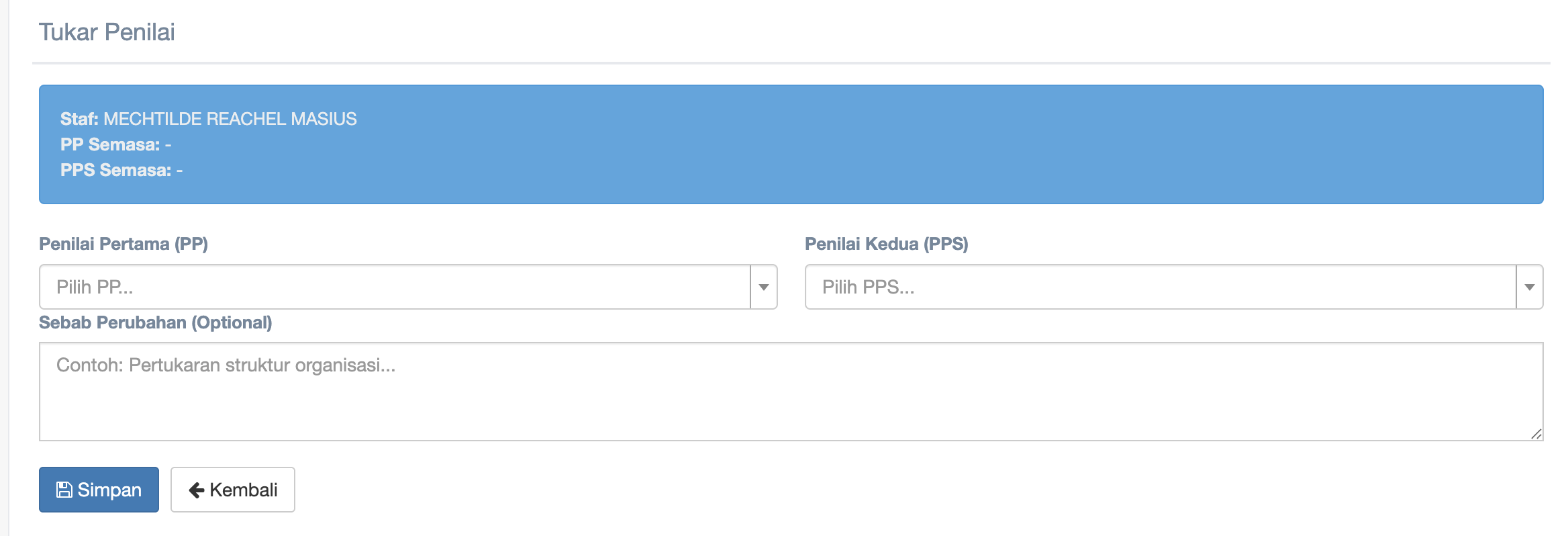
Step 9 : Click the dropdown of Penilai Pertama (PP) and Penilai Kedua (PPS) to choose
-
Click the dropdown of Penilai Pertama (PP)
-
Click the dropdown of Penilai Kedua (PPS) to choose
-
Fill in reason in the textbox of Sebab Perubahan (Optional)
-
Click Simpan button to start creating or updating
-
Click Kembali button to return to the Penetapan Penilai page
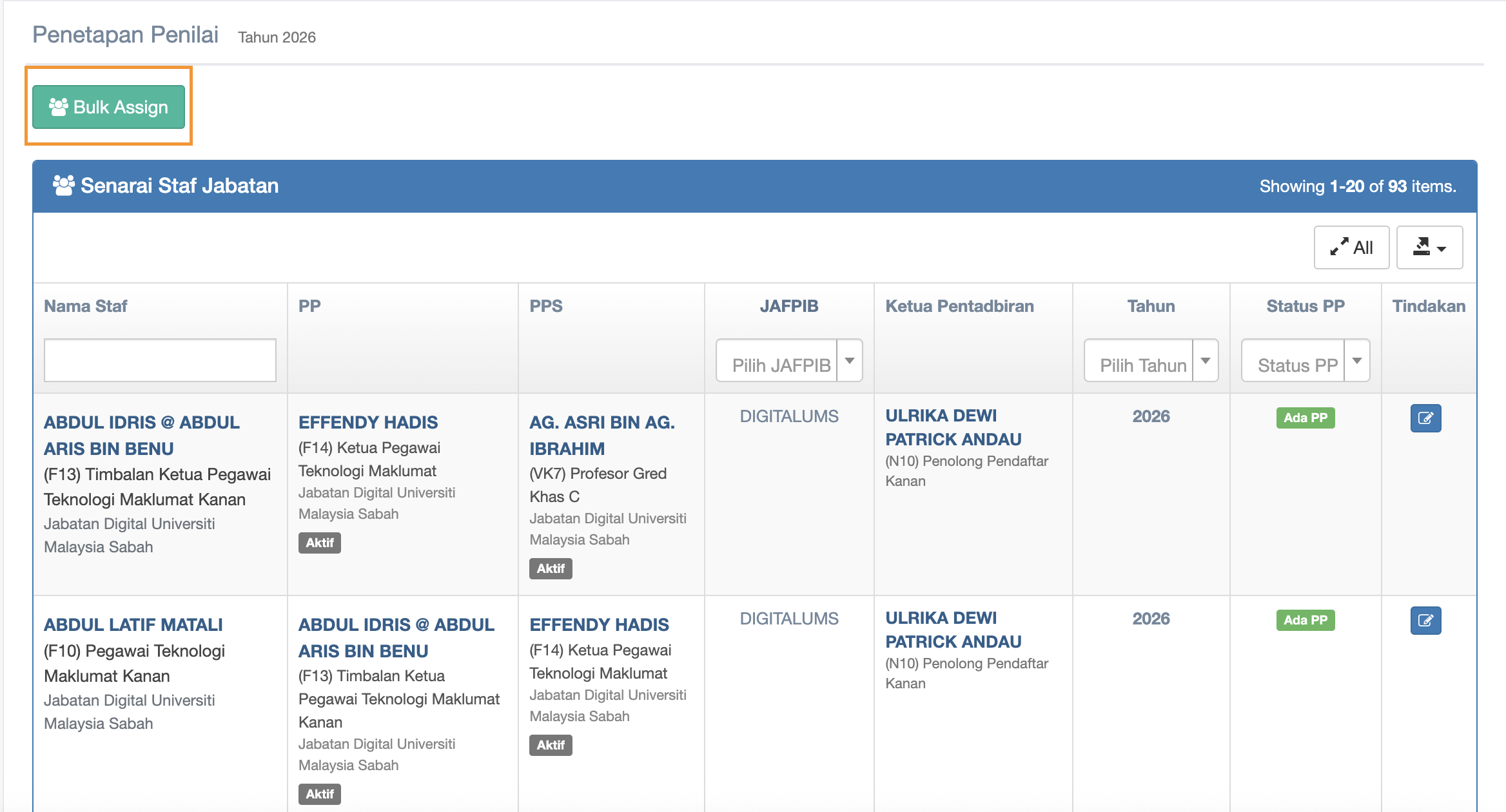
Step 10 : Click Bulk Assign
Step 11 : Bulk Assign Penilai
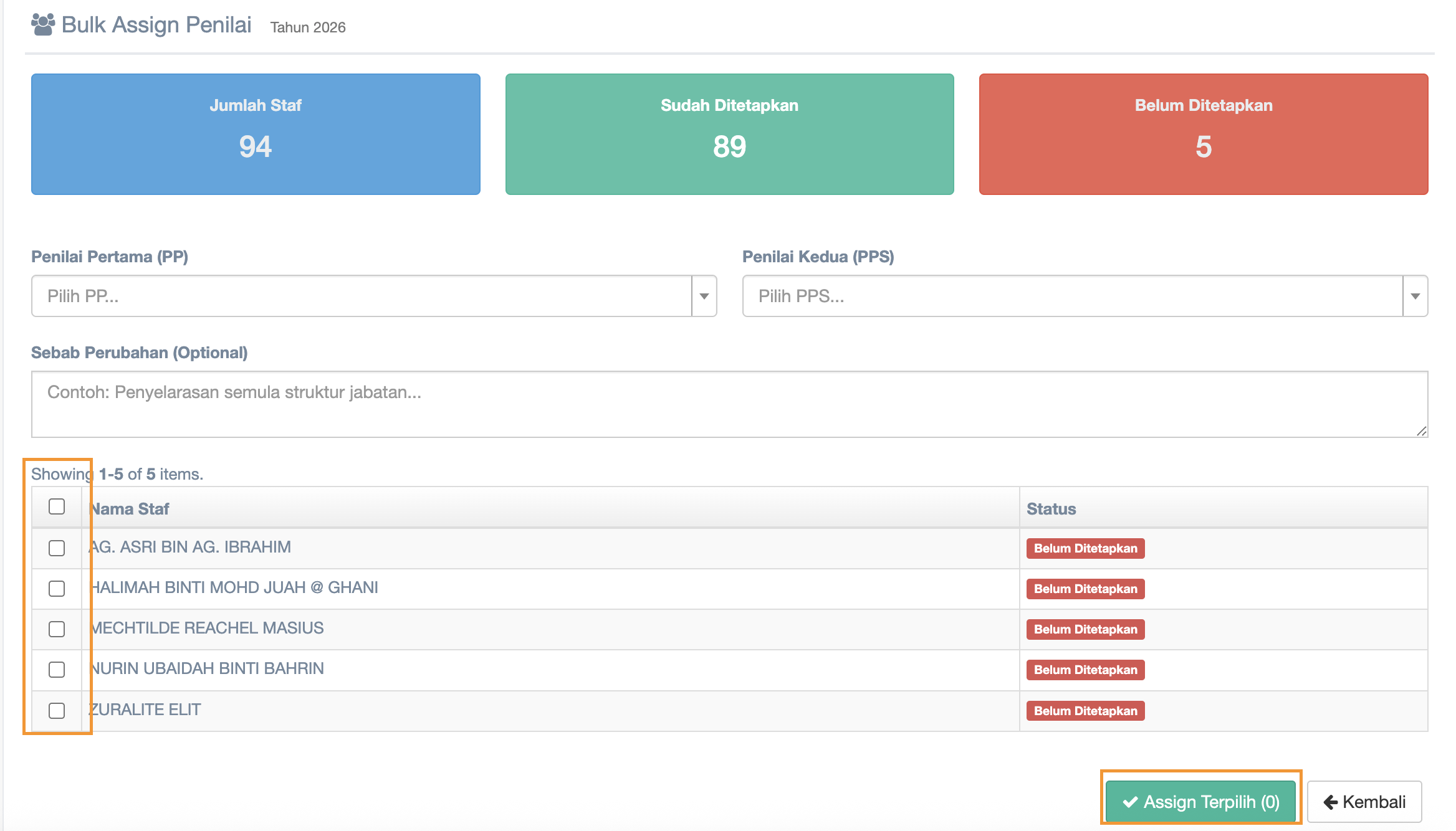
In Bulk Assign you can choose more than 1 staff to Penilai Pertama(PP) and Penilai Kedua (PPS)
1. click dropdown of Penilai Pertama (PP) to choose
2. click dropdown of Penilai Kedua (PPS) to choose
3. Fill in Sebab Perubahan (Optional)
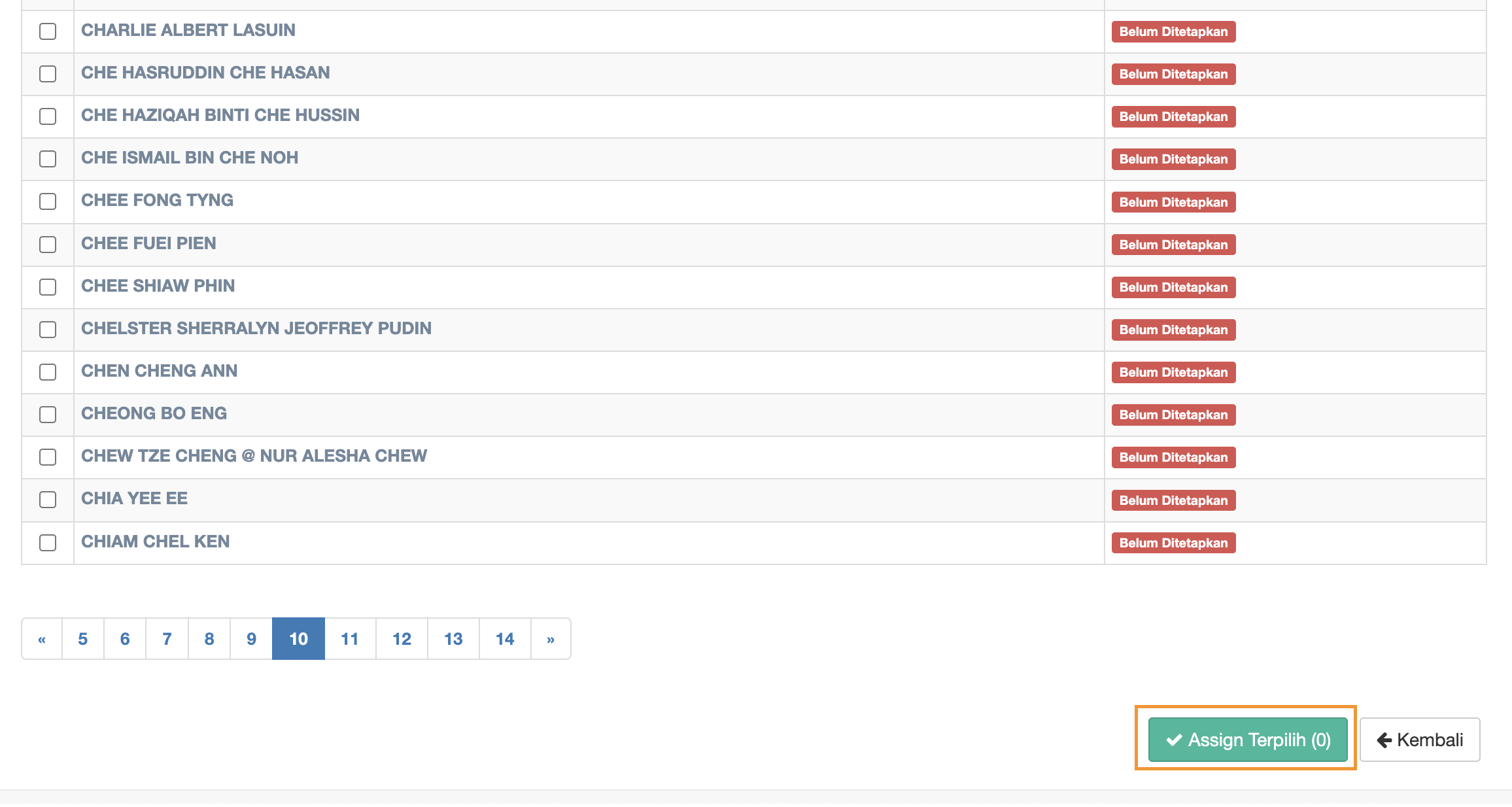
4. Mark the name from the Staff List
Step 12 :
5. after assigndone all marking then click Assign terpilihTerpilih button to assign
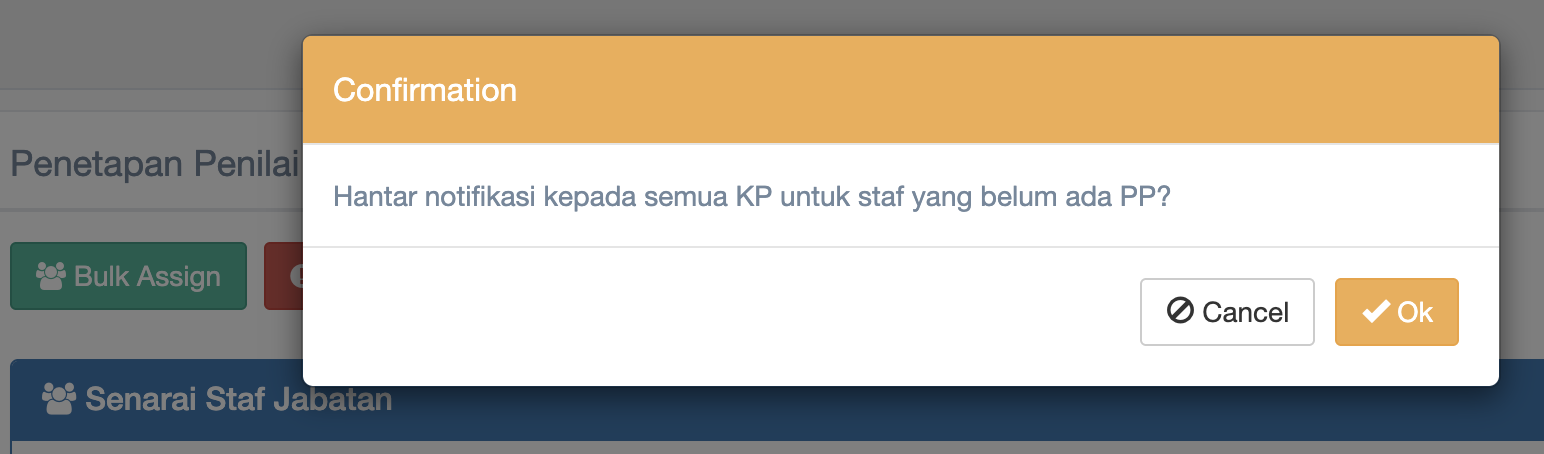
Step 13 : Click Notifikasi KP to notify Ketua Pentadbiran
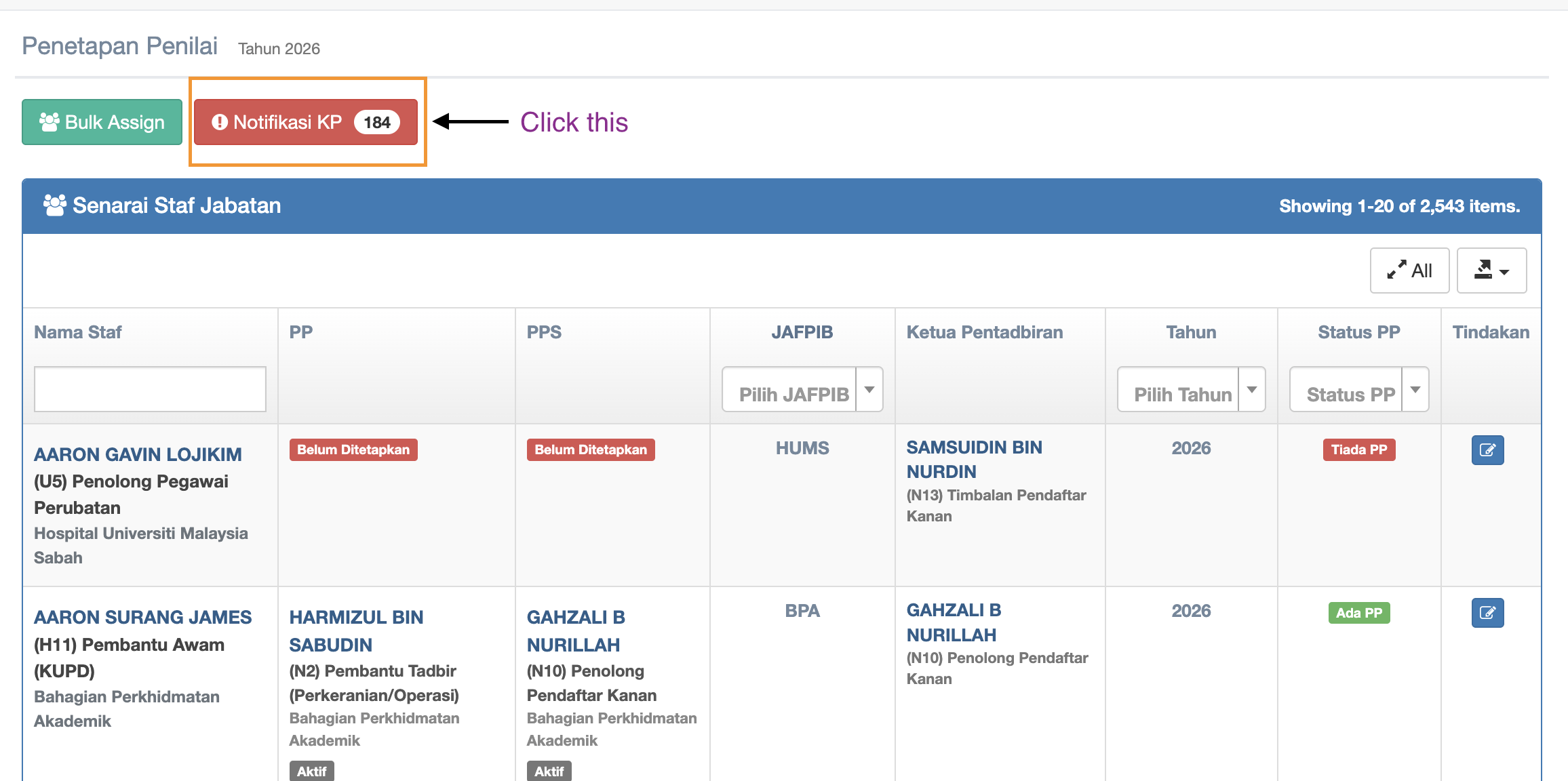
Step 14 : after clicked Notifikasi KP button then message pop up to send notification to all PP, click Ok to send